Move a token in the queue
Overview
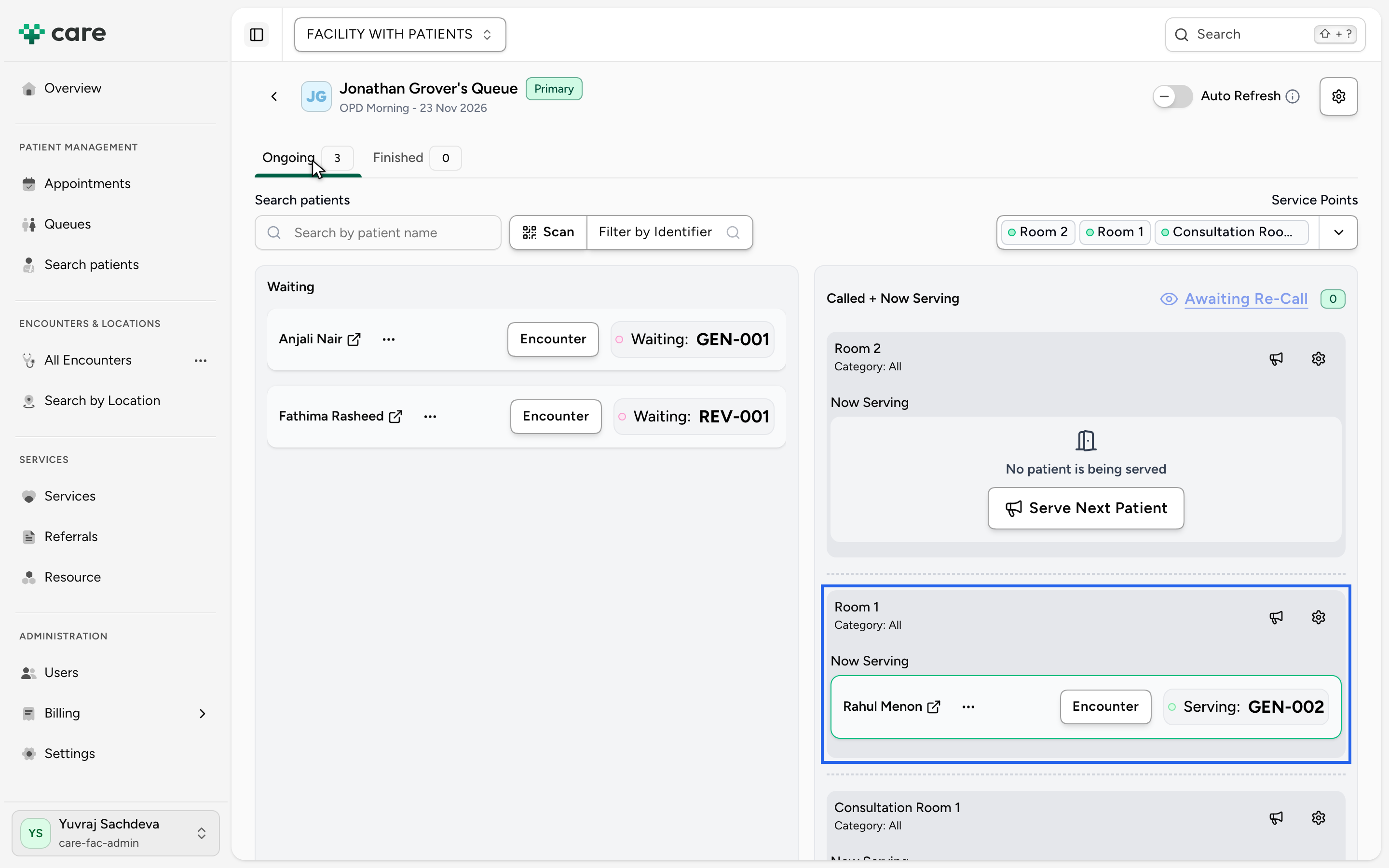
This flow describes how to move a token on the queue board. You can:
- Serve or call a waiting token out of order.
- Move a token to another service point.
- Move a served token back to calling.
- Set a token aside for re-call, and bring it back.
- Move a token back to Waiting.
- Bring back a completed token from the Finished tab.
To serve tokens in the usual order, see Serve patients from a token queue.
Pre-requisites
- You are a member of the facility.
- You open the queue board of the queue that holds the token. See Serve patients from a token queue.
- If you move a token to a service point, that service point has a section on the board.
- You have the permissions listed below.
Permissions
| Permission | Access |
|---|---|
| Can Create on Token | Lets you move a token between Waiting, the service points and Awaiting Re-Call, and back from the Finished tab. Hold it in the place of the queue's resource, as the list below the table shows. By default, the Admin, Staff, Facility Admin, Doctor, Nurse and Administrator roles hold it. |
| Can list token on Object | Lets you open the queue board and see its tokens, its service points and the Finished tab. Hold it in the same place as "Can Create on Token". By default, the Admin, Staff, Facility Admin, Doctor, Nurse and Administrator roles hold it. |
| Can list bookings on Object | Shows Queues under Patient Management in the facility sidebar, where you reach the queues of a practitioner. Hold it in the Administration organization, which every facility has, or in a department or team of the facility. By default, the Admin, Staff, Facility Admin, Doctor, Nurse and Administrator roles hold it. |
| Can Read Healthcare Service | Lets you reach the queues of a healthcare service, or of a location, through Services in the facility sidebar. Hold it in any organization of the facility. By default, the Facility Admin, Administrator, Admin, Staff, Doctor, Nurse, Volunteer and Pharmacist roles hold it. |
| Can View Facility Organizations | Needed only to choose a practitioner outside your own departments, under All Dept. in Selected practitioner. Hold it in any organization of the facility. The Administration organization appears in the list only if you hold it there. By default, the Facility Admin, Admin, Staff, Doctor, Administrator, Nurse and Volunteer roles hold it. |
Where you must hold "Can Create on Token" and "Can list token on Object" depends on the resource of the queue:
- For a practitioner's queue: the Administration organization, or an organization of the facility that the practitioner belongs to, or a parent of that organization.
- For a location's queue: an organization linked to the location or to its parent location, or a parent of one of them. The Administration organization also counts.
- For a healthcare service's queue: the service's managing organization or a parent of it. If the service has no managing organization, the Administration organization.
- If a department or team manages the service, hold them in that department or team, or in one above it. A role in the Administration organization alone does not count.
Note: The queue board shows its actions to everyone who can open it. If you do not hold "Can Create on Token" in the right place, Care refuses the change.
Steps
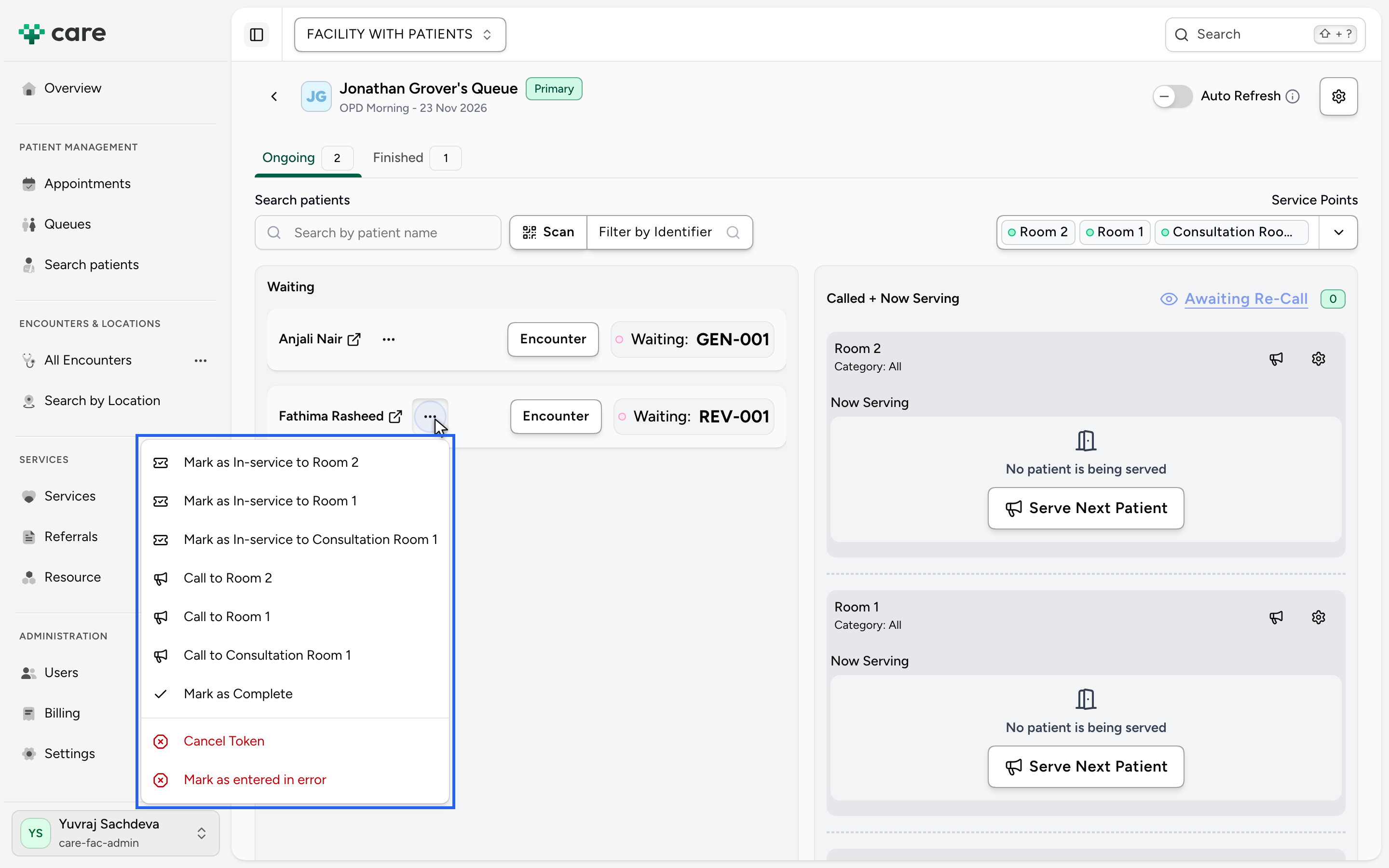
1. Open the menu of the token
On the Ongoing tab, find the token.
Select the three-dot button on the token card, or right-click the card.
The menu shows only the moves that fit the place and the label of the token.
Each move in this menu applies at once, with no confirmation.
2. Serve or call a waiting token out of order
This step applies to a token in Waiting.
Each service point with a section on the board has a "Mark as In-service to [service point name]" item.
Each of these service points also has a "Call to [service point name]" item.
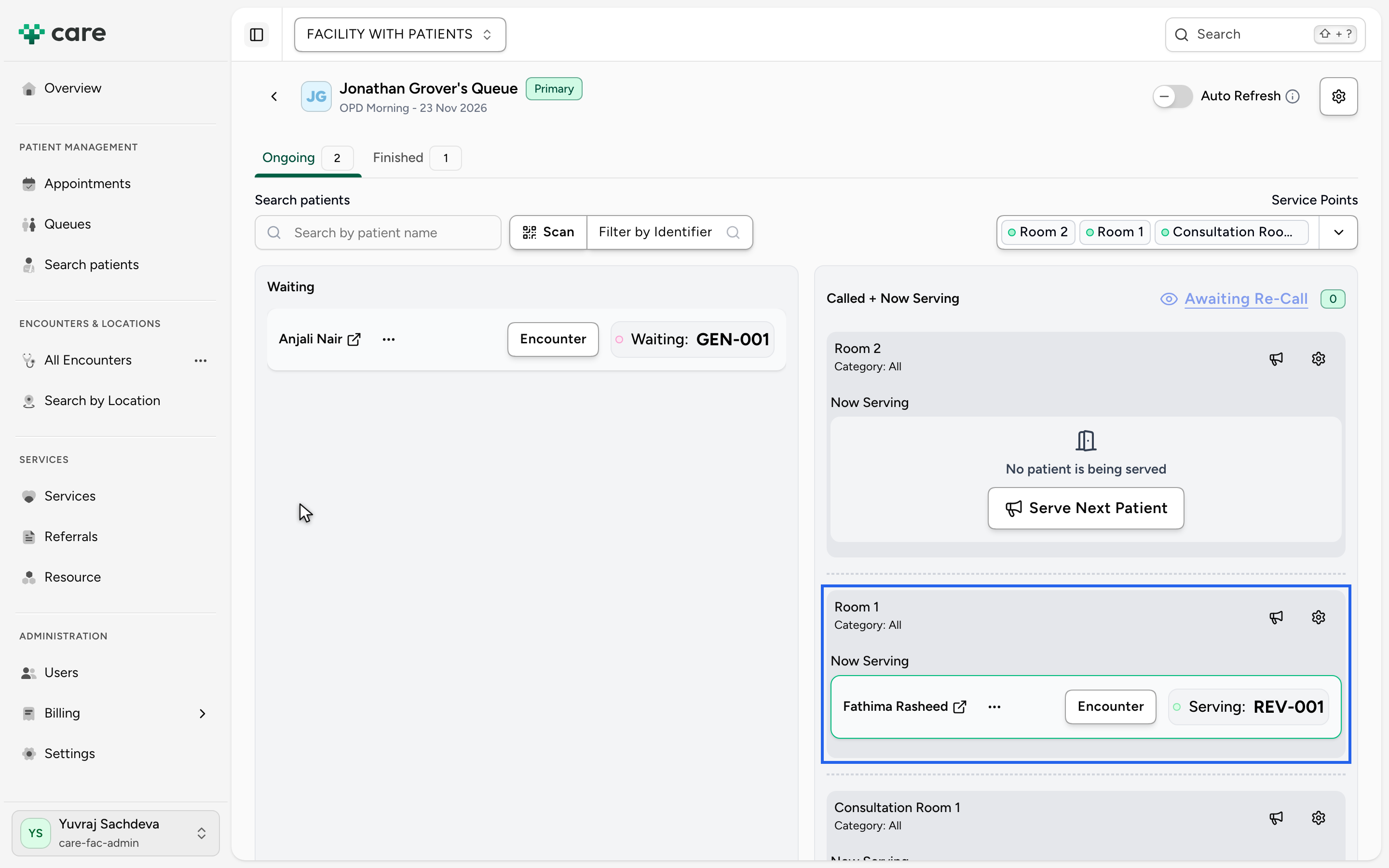
To serve the patient now, select "Mark as In-service to" with the name of your service point.
The token moves under Now Serving at that service point, with the label Serving.
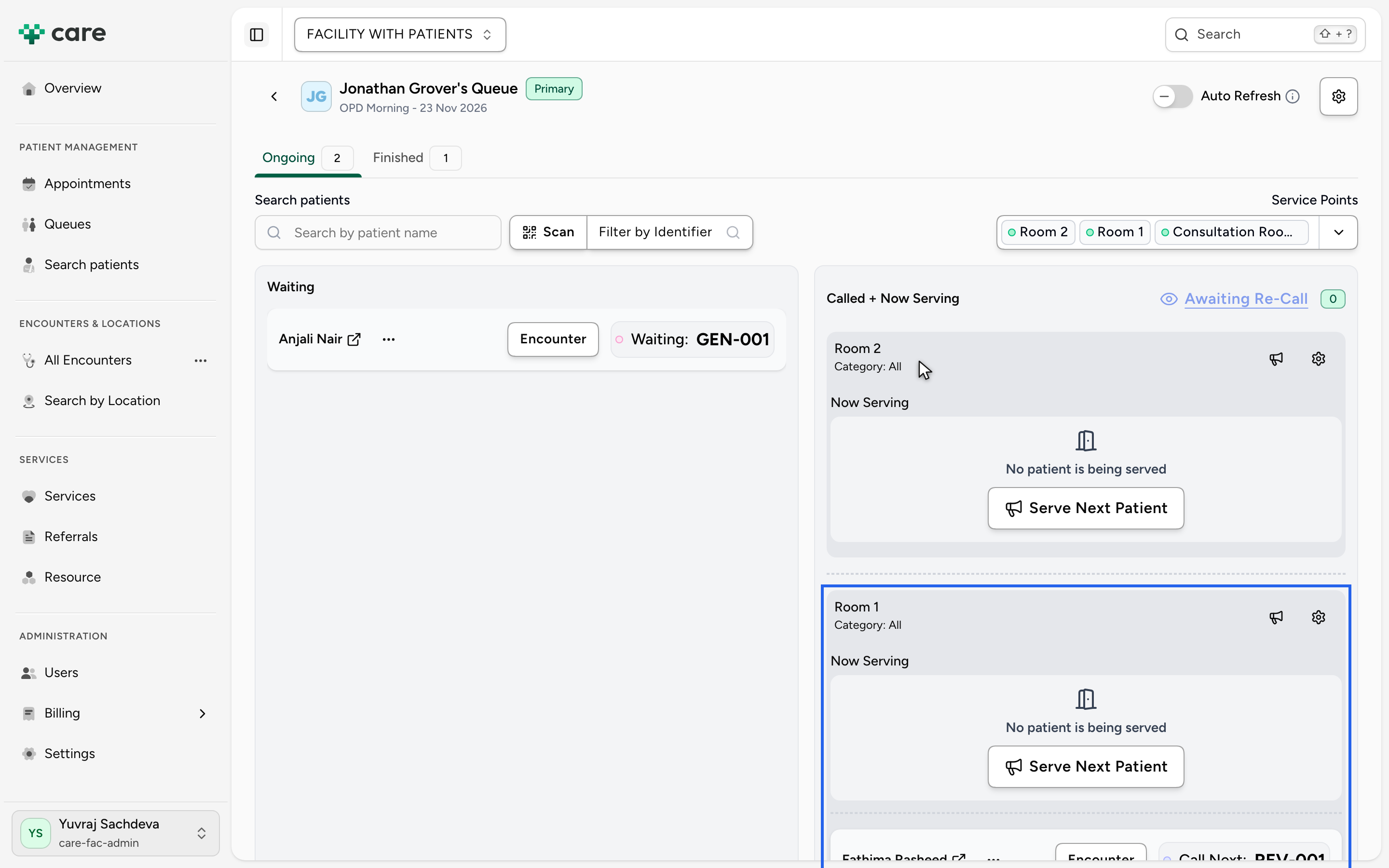
To call the patient without serving yet, select "Call to" with the name of the service point.
The token moves to the section of that service point, below Now Serving, with the label Call Next.
To serve a called token, see Serve patients from a token queue.
3. Move a token to another service point
This step applies to a token in the section of a service point.
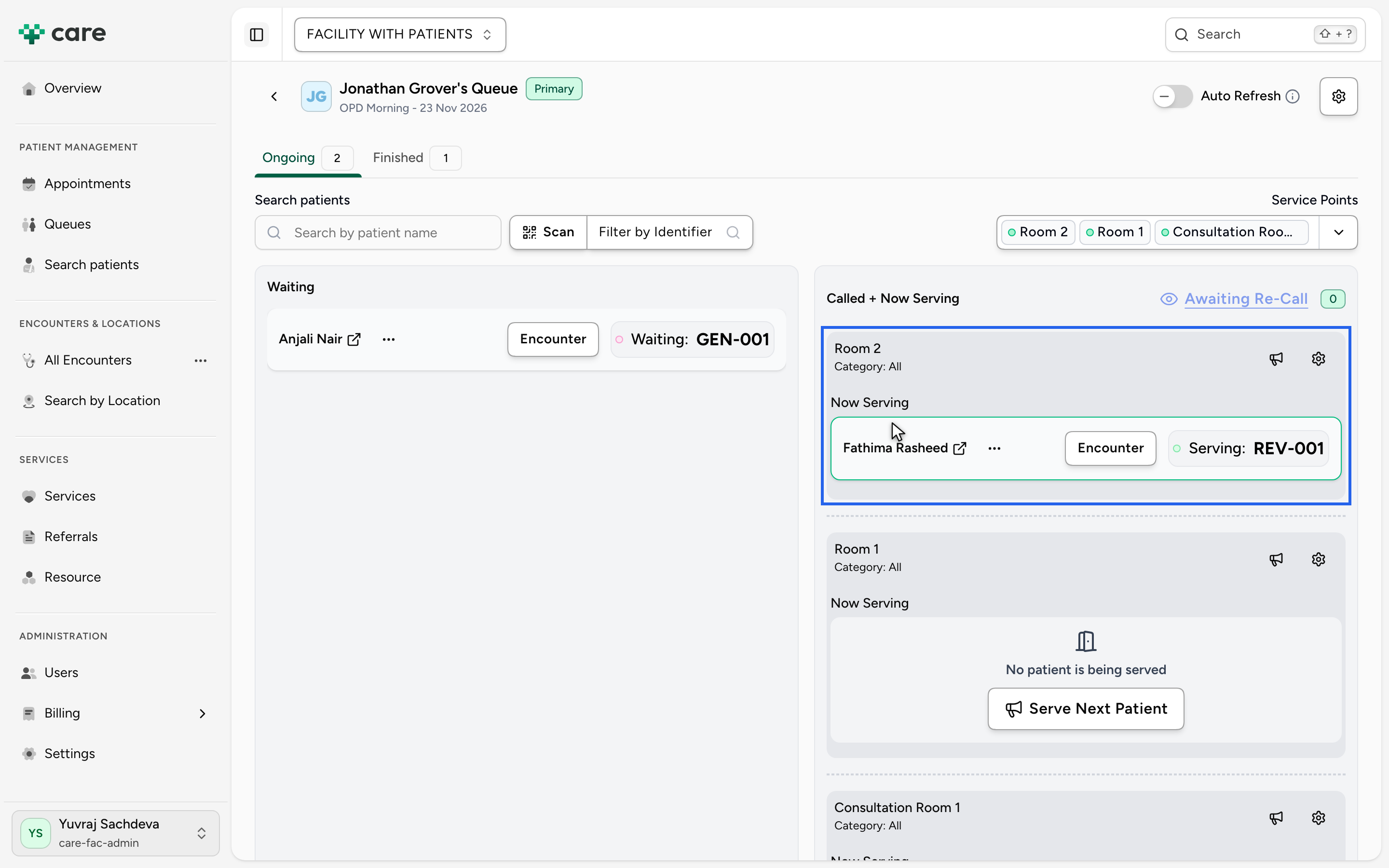
To serve the patient at another service point, select "Reassign to [service point name]" for that service point.
The token moves under Now Serving at that service point.
To call the patient to another service point, select "Call to [service point name]" for that service point. The token gets the label Call Next.
The menu does not offer the service point that has the token now.
A service point records the token that it took with Serve Next Patient, until that token leaves the service point.
Care refuses to move that token to another service point.
To move such a token, select Move to Waiting first. Then call it to the other service point.
4. Move a served token back to calling
This step applies to a token with the label Serving.
Select Move to Calling.
The token stays at the same service point, with the label Call Next.
5. Set a token aside for re-call
This step applies to a token with the label Serving.
Select Move to Awaiting Recall.
The token leaves its service point and gets the label Recall. You find it under Awaiting Re-Call.
6. Bring back a token from Awaiting Re-Call
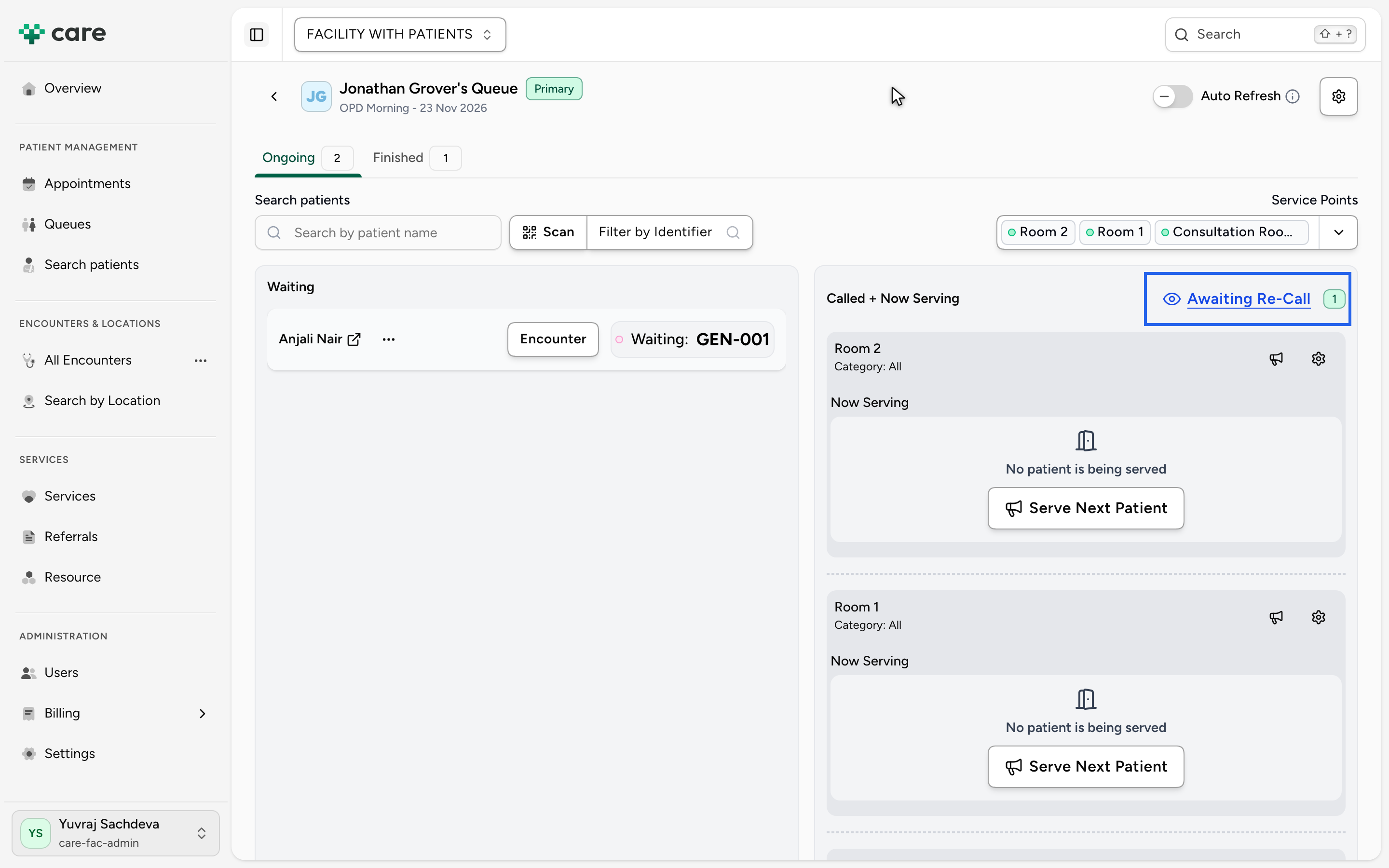
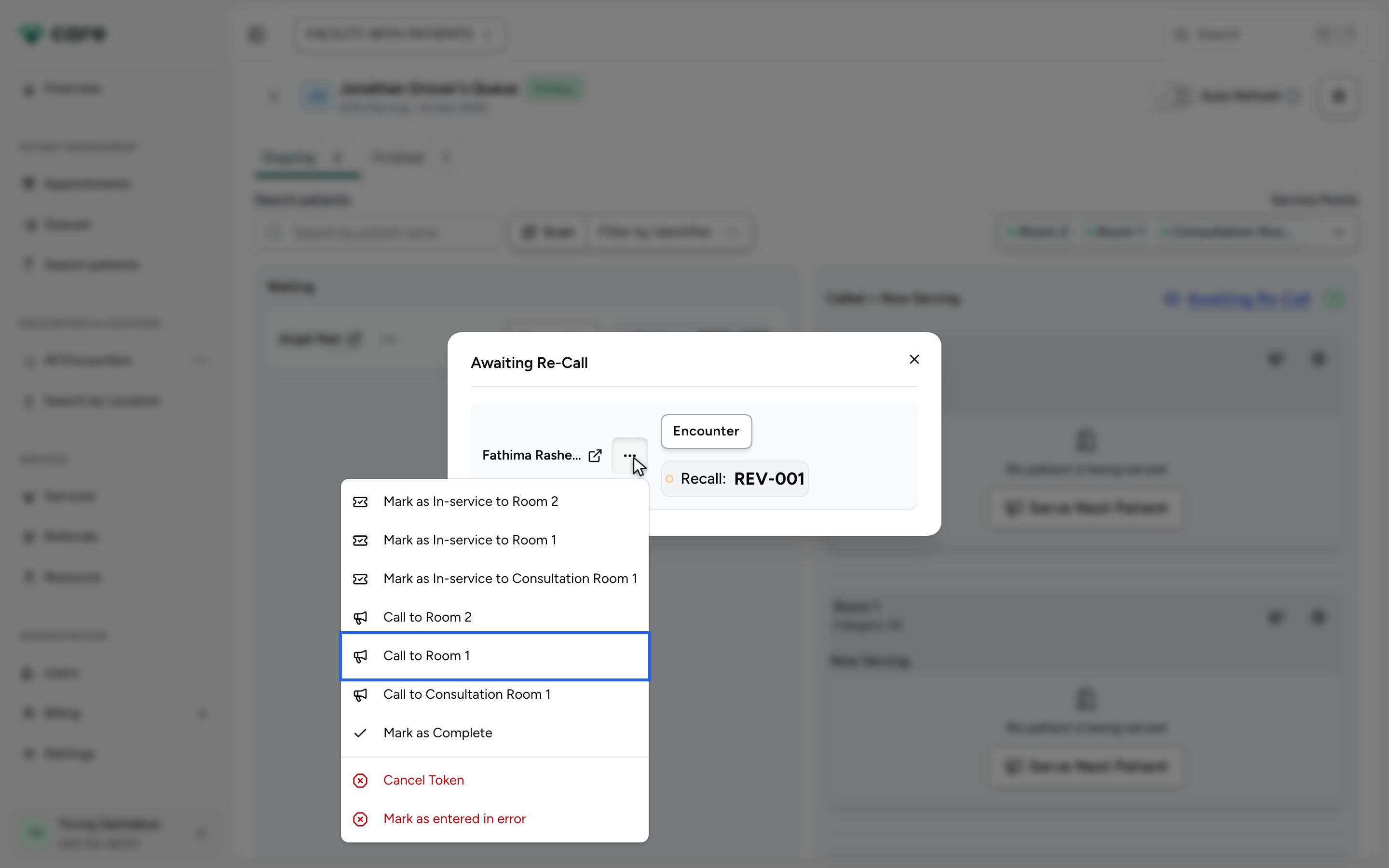
Select Awaiting Re-Call in the header of the Called + Now Serving column.
If no token waits for re-call, the button is not available.
The dialog lists the tokens that wait for re-call.
Open the menu of the token on its card in the dialog.
To serve the patient now, select "Mark as In-service to" with the name of your service point.
To call the patient first, select "Call to" with the name of the service point.
After "Call to", the dialog stays open. Close the dialog to go back to the board.
7. Move a token back to Waiting
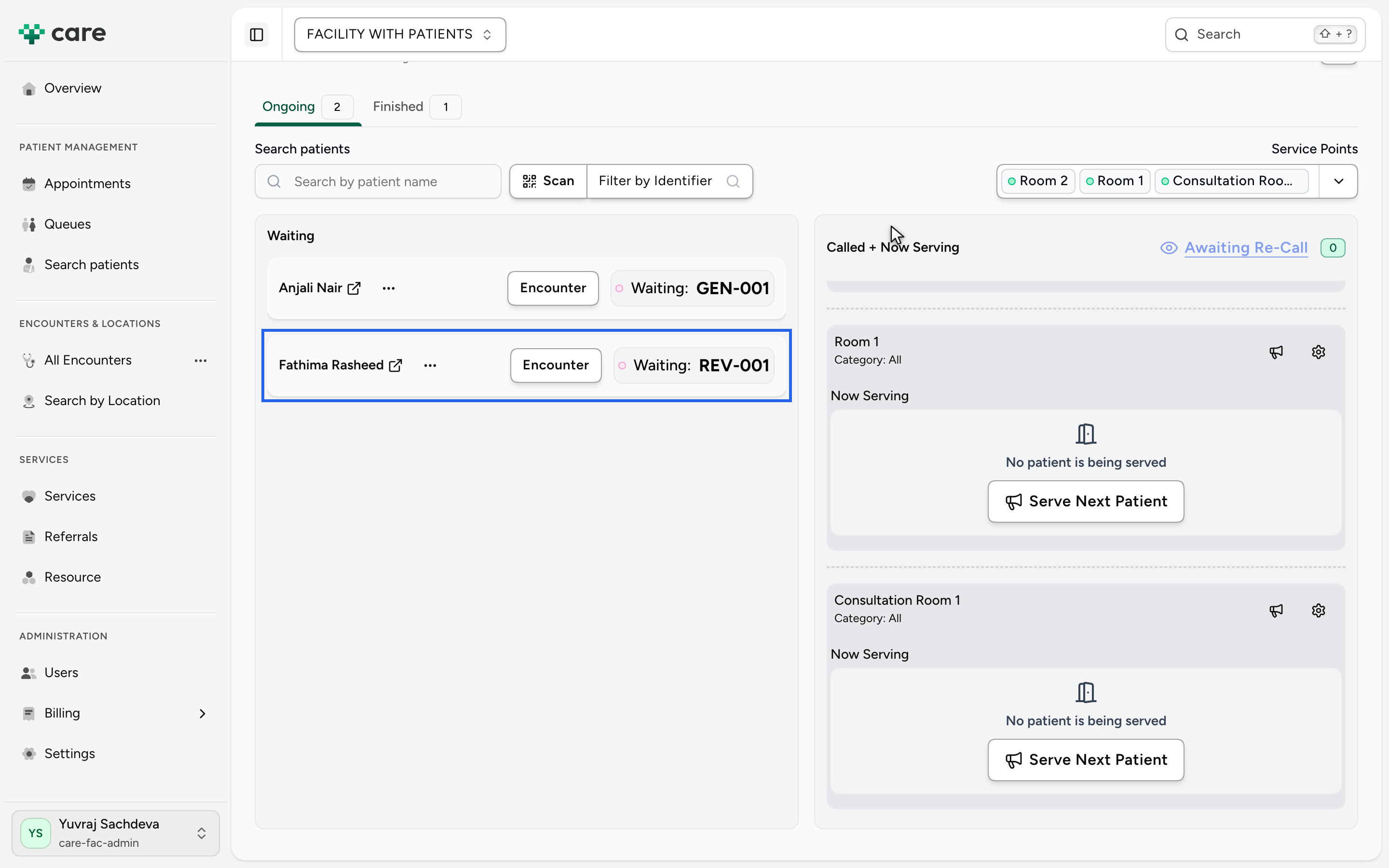
This step applies to a token in the section of a service point.
Select Move to Waiting.
The token leaves its service point and goes back to the Waiting column.
8. Bring back a completed token
Select the Finished tab.
Find the token with the status Fulfilled.
Select the three-dot button in the row of the token.
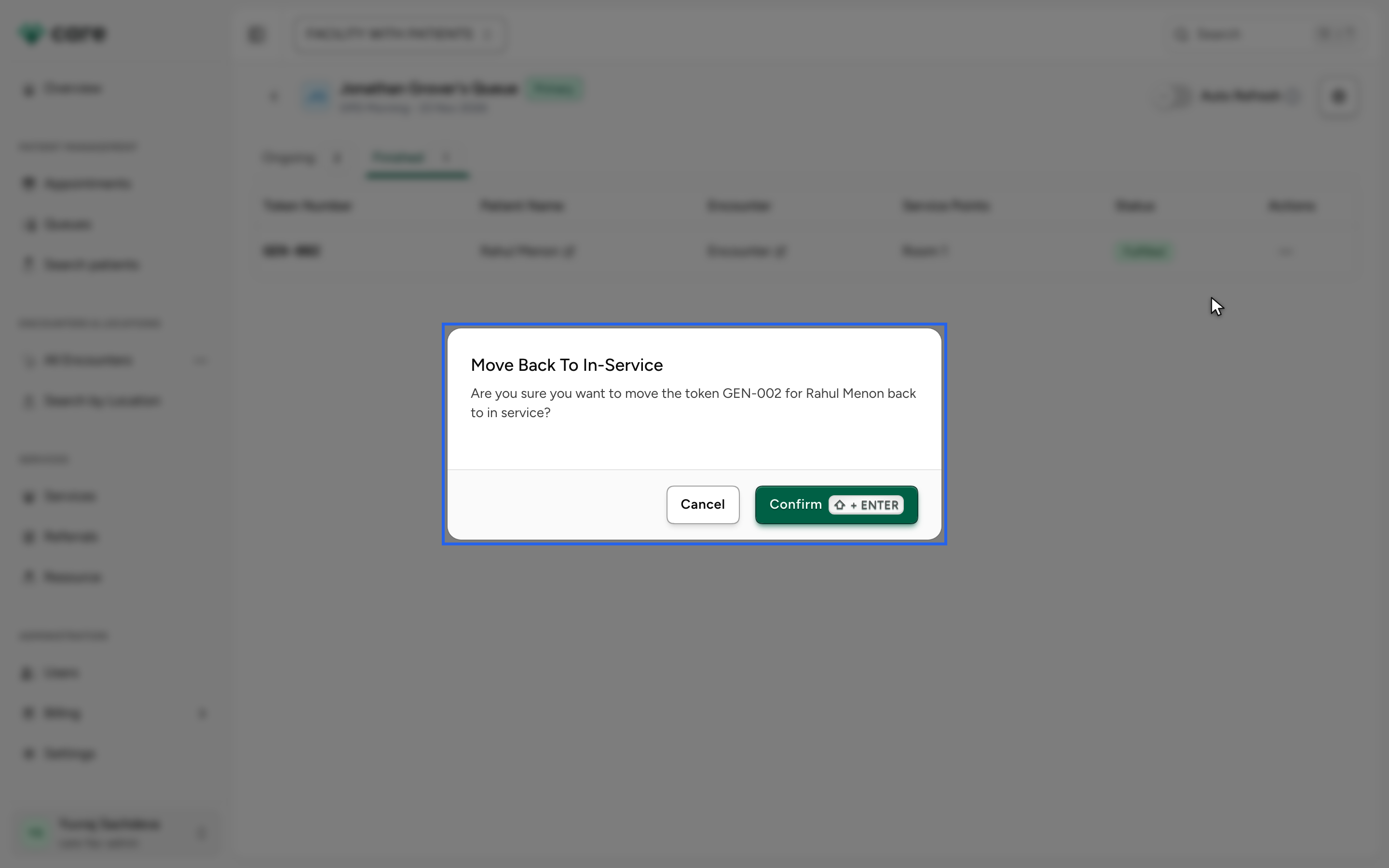
If the token had a service point, select Move back to In-service.
If the token had no service point, select Move back to waiting.
A dialog asks you to confirm, with the token number and the patient's name.
Select Confirm.
Move back to In-service puts the token under Now Serving at its service point.
Move back to waiting puts the token in the Waiting column.
To set the token aside for re-call instead, select Move to Awaiting Recall. It applies at once.
Expected Outcome
- The token is in its new place on the Ongoing tab. Its label shows its new state.
- A token that you bring back from the Finished tab leaves that tab.
Related
Concepts:
Flows: