View and print a patient's tokens
Overview
This flow describes how to see the tokens of a patient in a facility, and how to print a token.
Pre-requisites
- You are a member of the facility.
- The patient is registered in Care.
- You have the permissions listed below.
Permissions
| Permission | Access |
|---|---|
| Can list token on Object | Lets you see the token list on the patient's page. Hold it in the Administration organization, which every facility has, or in a department or team of the facility. By default, the Admin, Staff, Facility Admin, Doctor, Nurse and Administrator roles hold it. |
| Can list encounters | Shows Search patients in the facility sidebar. You need this permission, "Can Create encounter" or "Can update bookings on Object". Hold it in the Administration organization, or in a department or team of the facility. By default, the Admin, Doctor, Nurse and Facility Admin roles hold it. |
| Can Create encounter | Shows Search patients in the facility sidebar, like "Can list encounters". Hold it in the Administration organization, or in a department or team of the facility. By default, the Admin, Doctor, Nurse and Facility Admin roles hold it. |
| Can update bookings on Object | Shows Search patients in the facility sidebar, like "Can list encounters". Hold it in the Administration organization, or in a department or team of the facility. By default, the Admin, Staff, Facility Admin, Doctor and Nurse roles hold it. |
| Can Read Patient Identifier Config | Lets you search for the patient by an identifier type that belongs to the facility. Hold it in any organization of the facility. By default, the Facility Admin, Administrator, Admin, Staff, Doctor, Nurse, Volunteer and Pharmacist roles hold it. |
For steps 1 to 5, the Admin, Staff, Facility Admin, Doctor and Nurse roles give all the access by default. They count when held in the Administration organization, or in a department or team. The Administrator role holds "Can list token on Object", but by default it does not see Search patients.
To open the queue board from a token, you also need "Can list token on Object" for the practitioner, location or healthcare service of the queue. See Serve patients from a token queue.
Steps
1. Open the patient's page
- Search for the patient. See Search for a patient.
- Open the patient's page in the facility.
2. Find the token list
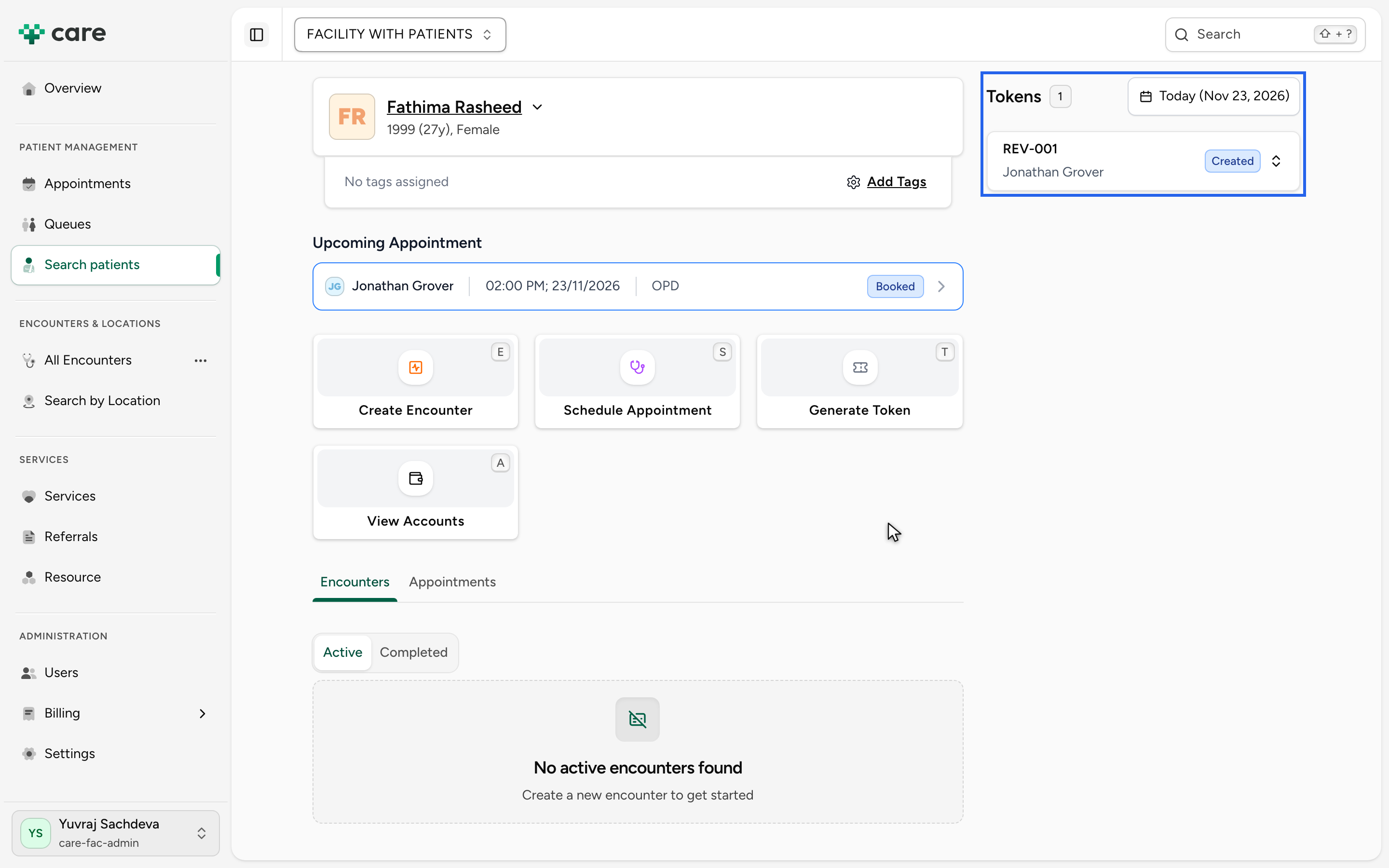
- On a wide screen, the patient's page shows the Tokens list at the side.
- On a small screen, select the Tokens tab.
- The heading shows the number of tokens in the list.
3. Choose a date
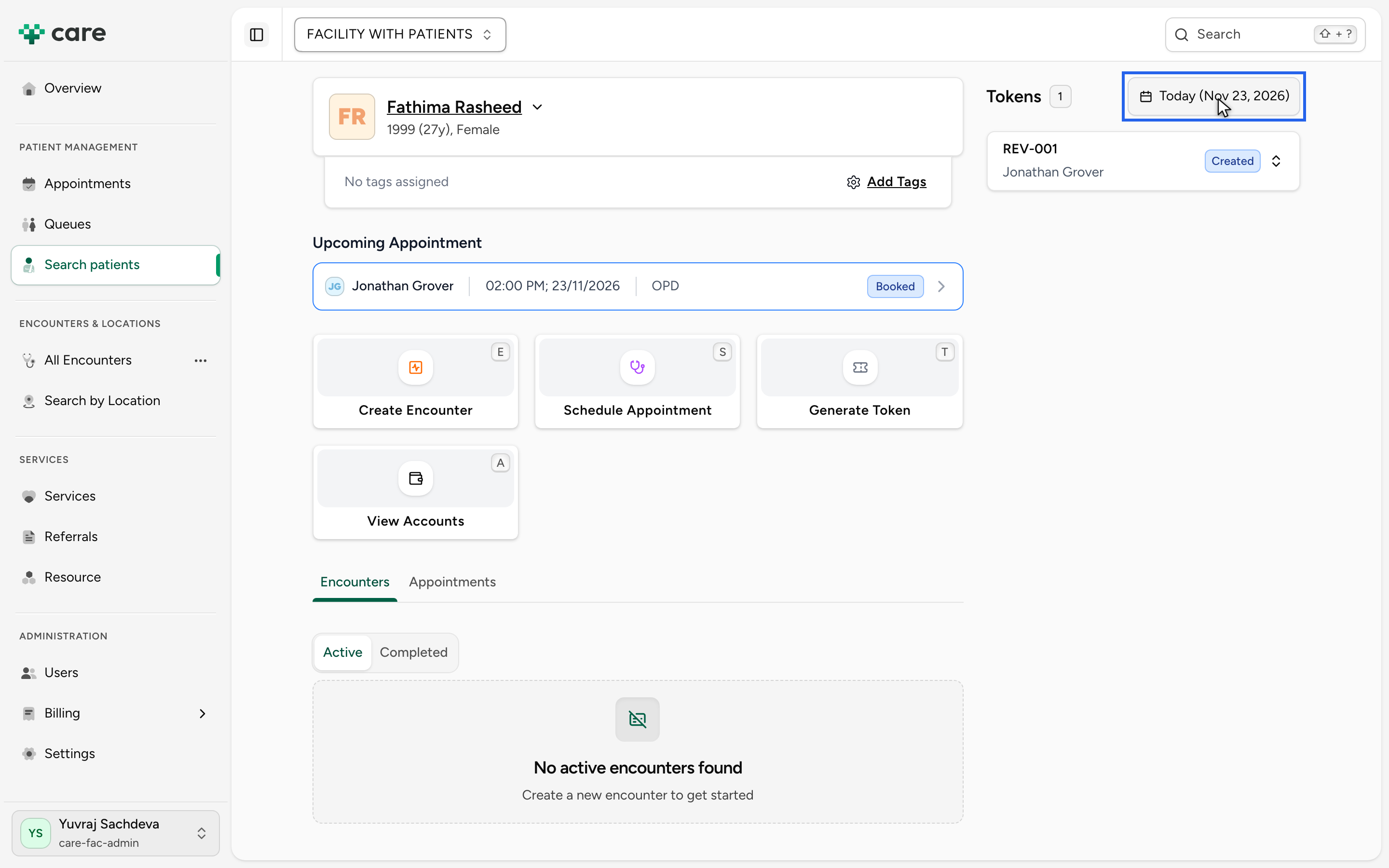
- The list shows the tokens of the patient in this facility for today.
- To see the tokens of a different day, select the date in the date picker.
- The list shows up to 50 tokens.
- If the patient has no tokens on that date, the list shows "No tokens available".
4. Open a token
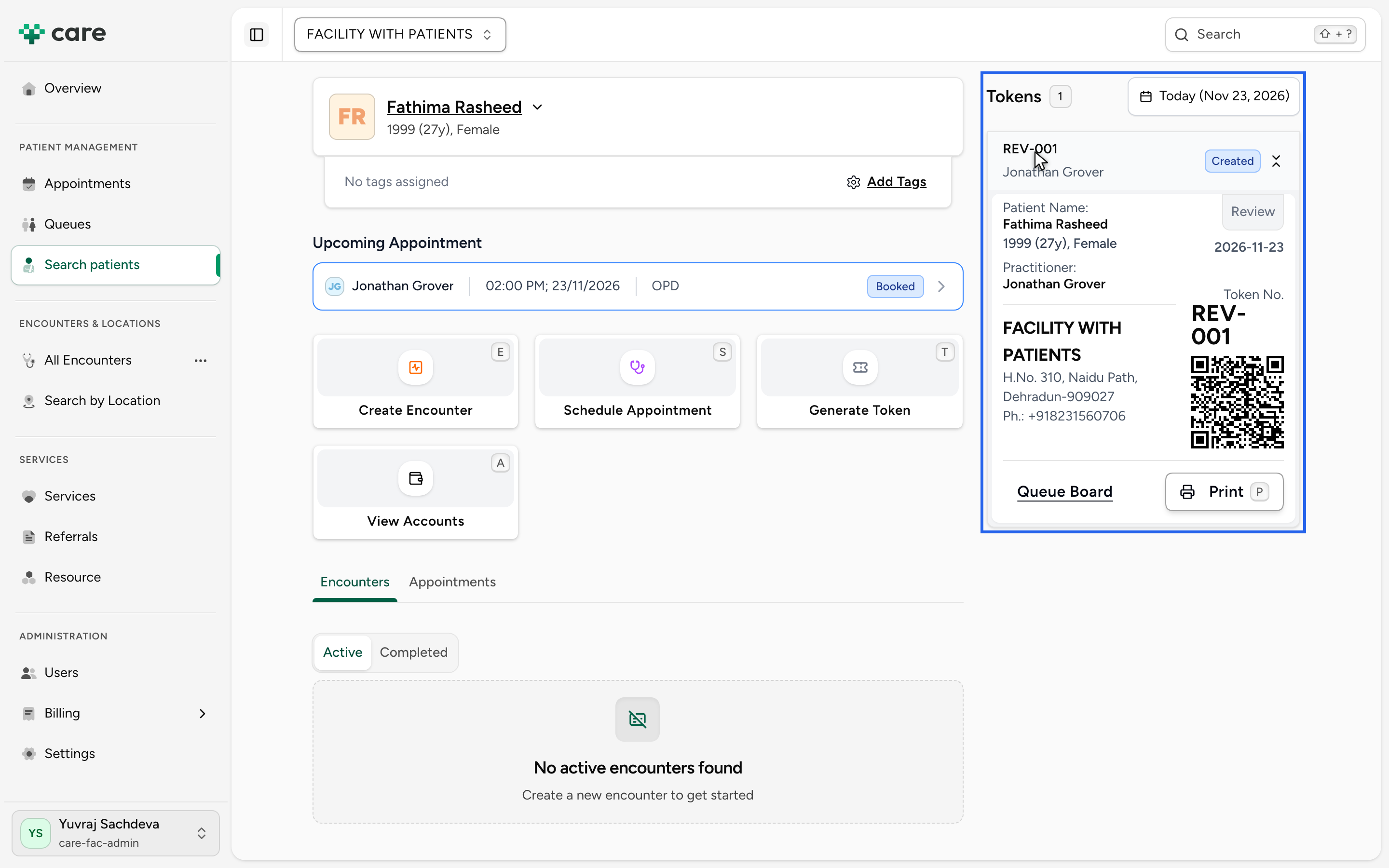
- Each token shows its number, its practitioner, location or healthcare service, and a status badge.
- The status badge shows statuses such as Created, In Progress, Fulfilled, Cancelled or Entered in Error.
- Select a token to open its token card.
- The token card shows a QR code for the token.
5. Print the token
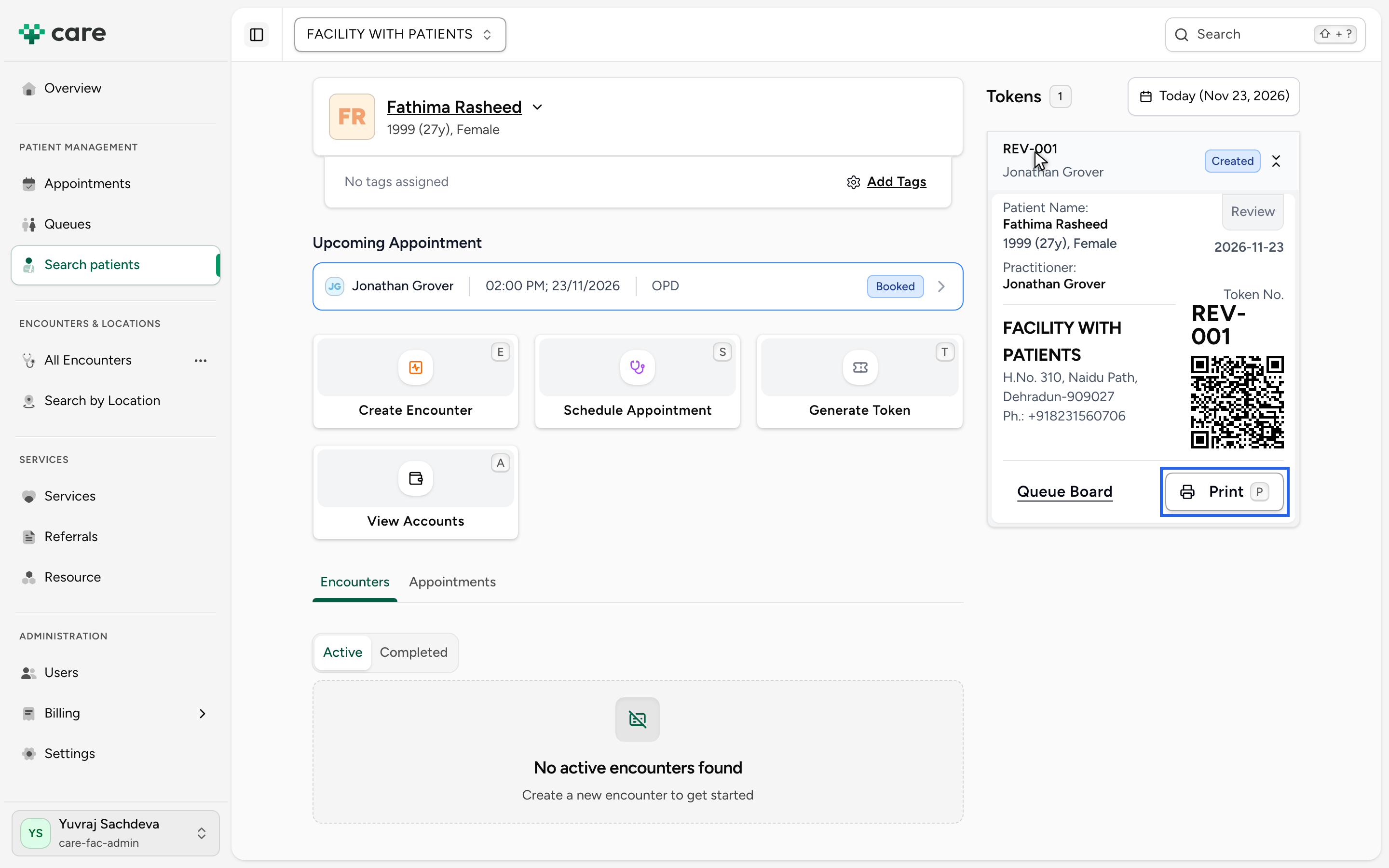
- On the token card, select Print.
- Your browser prints the token card.
6. Open the queue board
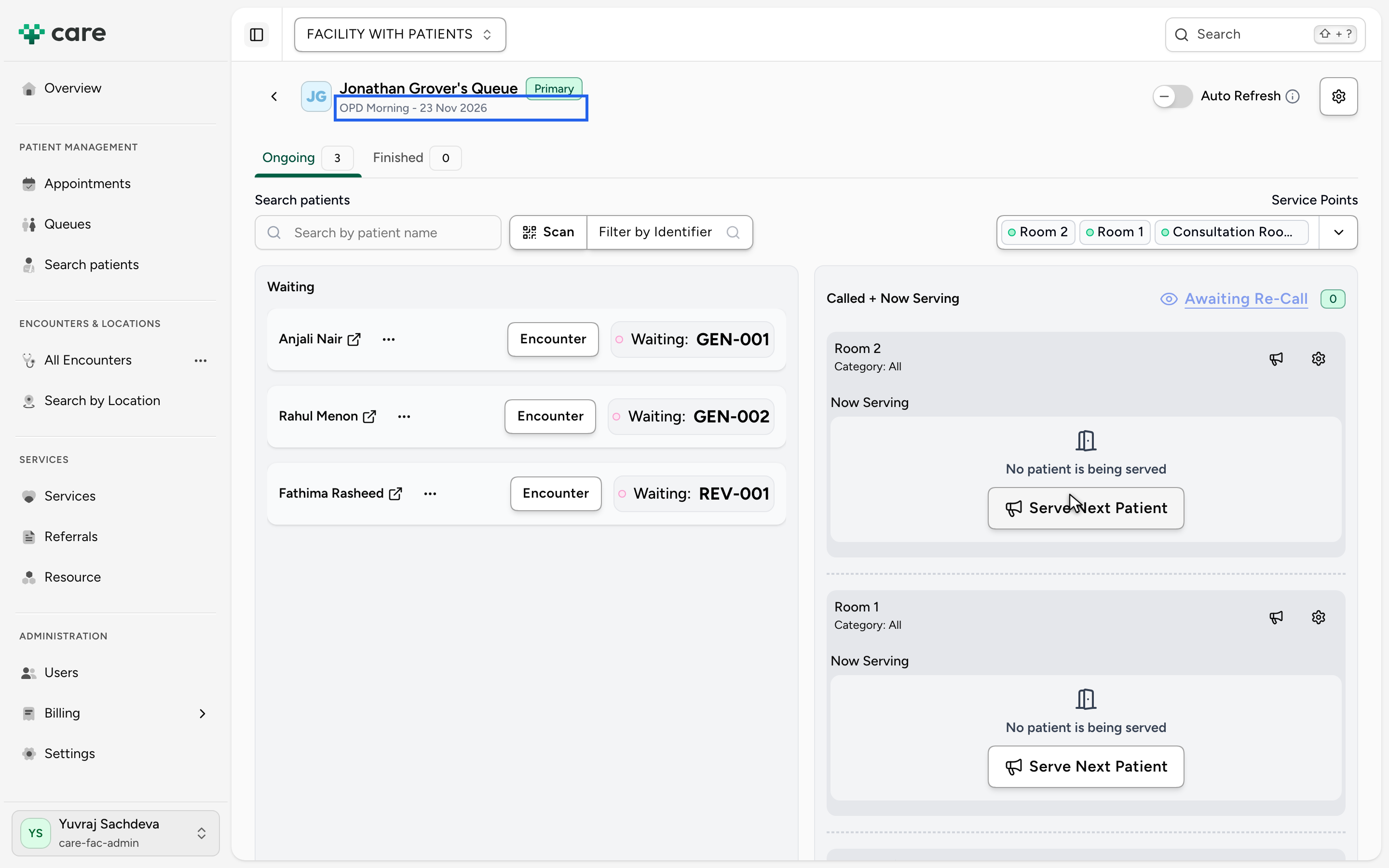
- If you want to see the queue of the token, select Queue board on the token card.
- Care opens the board of the queue that holds the token.
Expected Outcome
- You see the tokens of the patient in this facility for the date that you chose.
- If you selected Print, you have a printed copy of the token card.
- If you selected Queue board, you see the board of the queue that holds the token.
Related
Concepts:
Flows: