Set up service points
Overview
This flow describes how to add and change the service points of a practitioner, a location or a healthcare service in Care. A service point belongs to the resource, not to one queue or date, and every queue board of the resource offers its active service points.
Pre-requisites
- You sign in to Care with a staff account.
- You are a member of the facility.
- If the service points are for another practitioner, that practitioner is a member of the facility. The practitioner also has a schedule, a queue or a service point in this facility. The practitioner picker lists only such practitioners.
- You have the permissions listed below.
Permissions
| Permission | Access |
|---|---|
| Can Create on Token | Lets you add a service point and change its name or status. Where you must hold it depends on the resource. For a practitioner: the Administration organization, which every facility has, an organization the practitioner belongs to, or one above it. For a location: an organization linked to the location or one above it, an organization of its parent location, or the Administration organization. For a healthcare service that a department or team manages: that department or team, or one above it. A role in the Administration organization alone does not count for such a service. For a healthcare service that no organization manages: the Administration organization. By default, the Admin, Staff, Facility Admin, Doctor, Nurse and Administrator roles hold it. |
| Can list token on Object | Lets you see the service points of the practitioner, location or healthcare service on its queue list. You must hold it in the same place as Can Create on Token. By default, the Admin, Staff, Facility Admin, Doctor, Nurse and Administrator roles hold it. |
| Can list bookings on Object | Shows Queues in the facility sidebar, which opens the queue list of a practitioner. You must hold it in the Administration organization, or in a department or team of the facility. By default, the Admin, Staff, Facility Admin, Doctor, Nurse and Administrator roles hold it. |
| Can Read Healthcare Service | Lets you see the services on the Services page and open a service. You need it to reach the queue list of a healthcare service, or of a location from a service's page. You can hold it in any organization of the facility. By default, the Facility Admin, Administrator, Admin, Staff, Doctor, Nurse, Volunteer and Pharmacist roles hold it. |
| Can View Facility Organizations | Optional. Lets you see the departments under All Dept. and the sub-departments in the practitioner picker. You need it only to choose a practitioner outside your own departments. You can hold it in any organization of the facility. The Administration organization appears in the picker only if you hold the permission there. By default, the Facility Admin, Admin, Staff, Doctor, Administrator, Nurse and Volunteer roles hold it. |
Steps
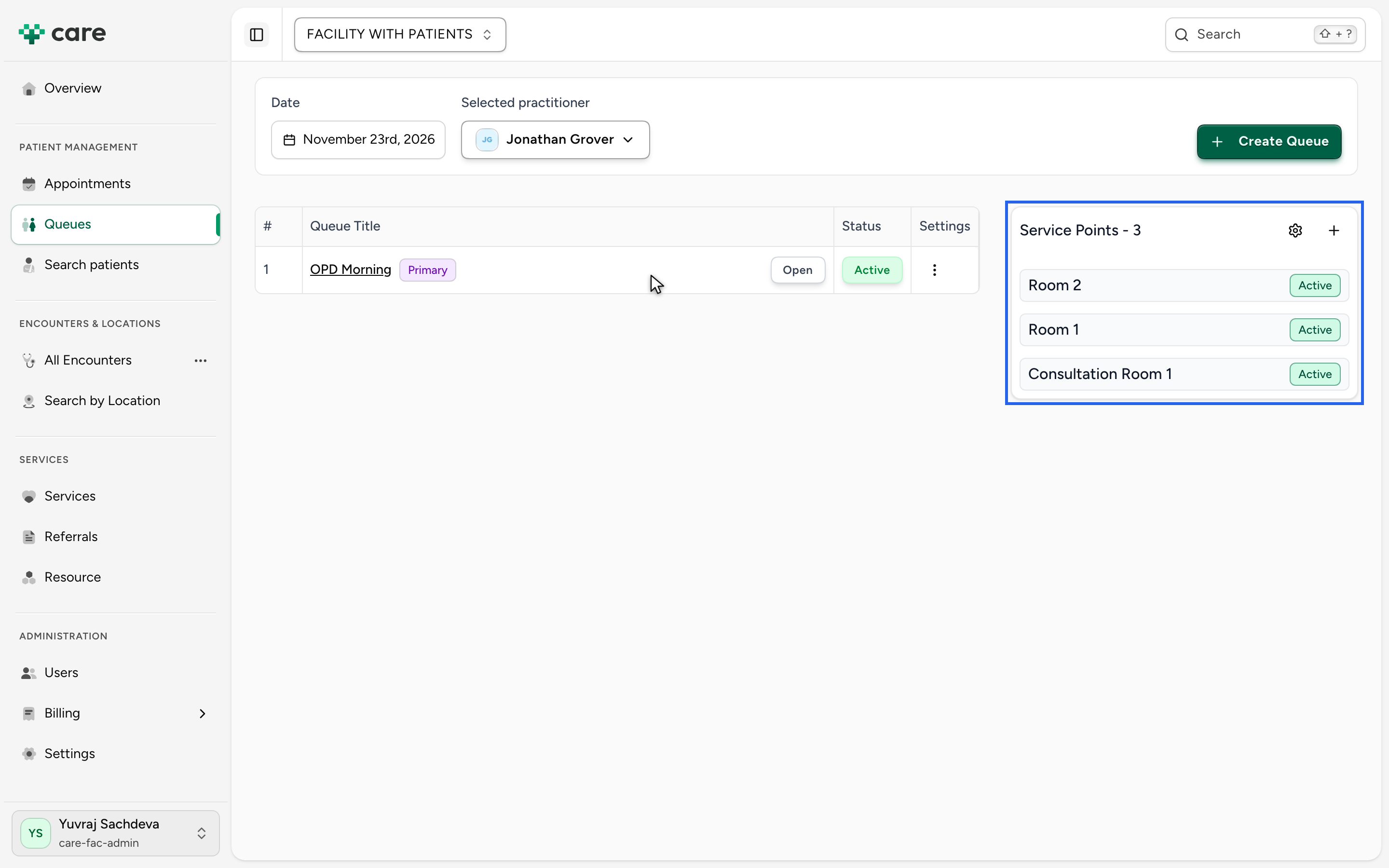
1. Open the queue list of the resource
For a practitioner, in the facility sidebar, under Patient Management, select Queues.
Under Selected practitioner, choose the practitioner.
Note: If you have no schedule, queue or service point in this facility, nobody is selected. The plus button and Add First Service Point then create the service point for you. To set up service points for another practitioner, select that practitioner first.
For a location or a healthcare service, open its queue list. See Create a token queue.
The date on the queue list does not change the service points. Service points do not belong to a date.
2. Open the Add Service Point form
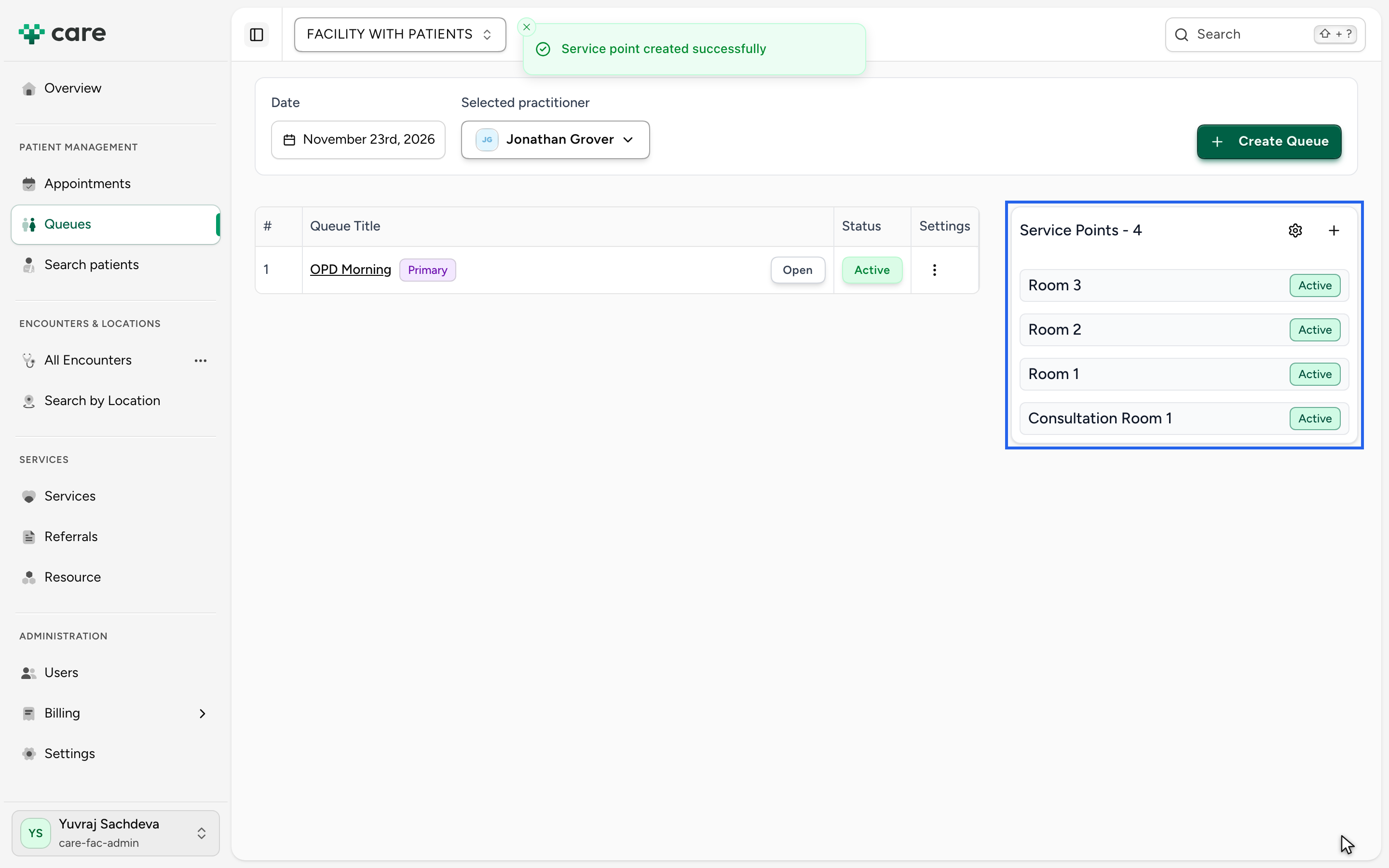
The Service Points panel shows the number of service points of the resource.
Select the plus button in the Service Points panel.
If the resource has no service points, the panel shows "No service points found". Select Add First Service Point.
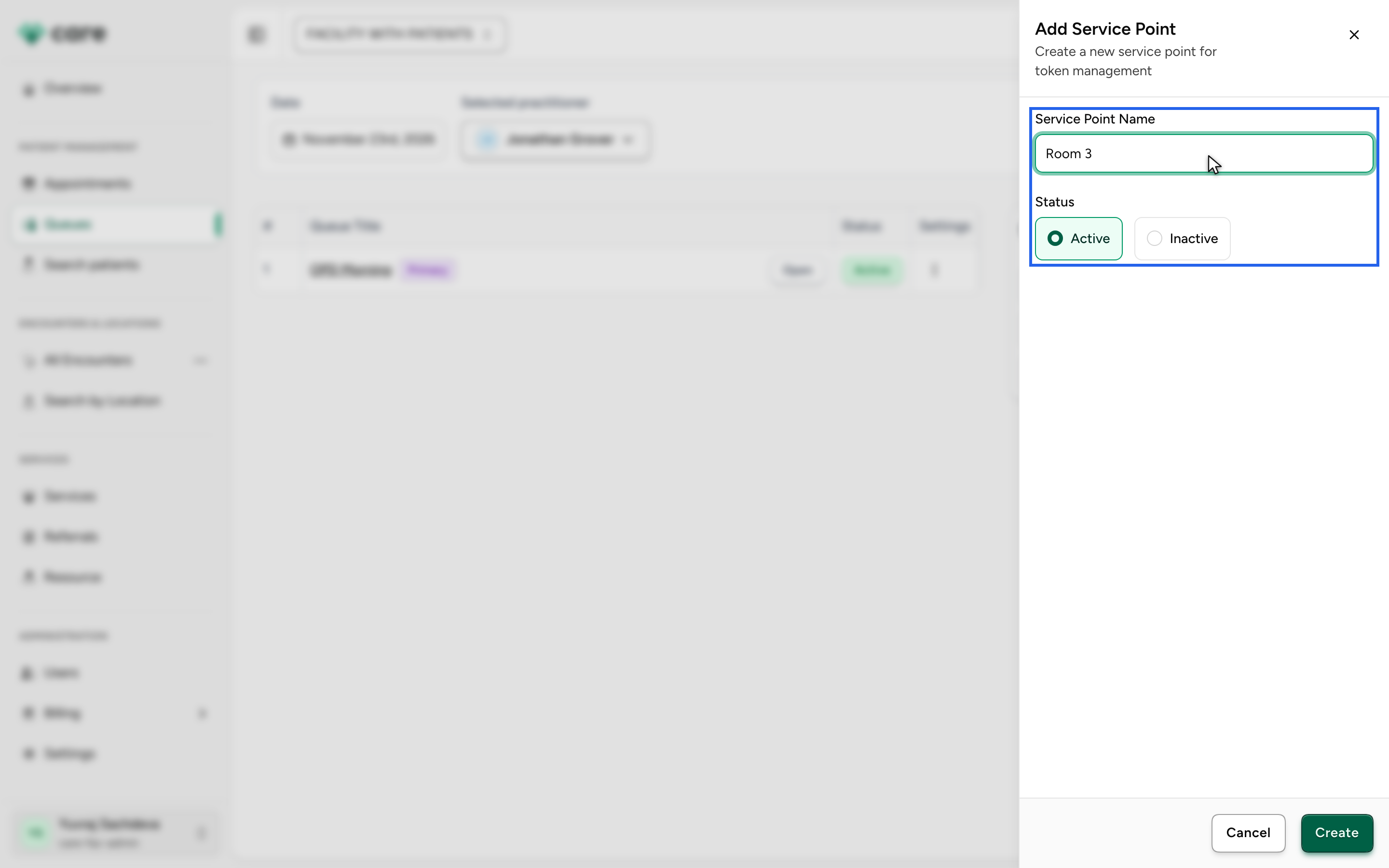
The Add Service Point form opens.
3. Enter the service point details
| Components | What it captures |
|---|---|
| Service Point Name | The name of the service point, for example a room. Required. |
| Status | Active or Inactive. A new service point starts as Active. Queue boards offer only active service points. |
4. Save the service point
Select Create.
To close the form without saving, select Cancel.
Change a service point
You can change the name or the status of a service point. Set a service point to Inactive to stop offering it on the queue boards.
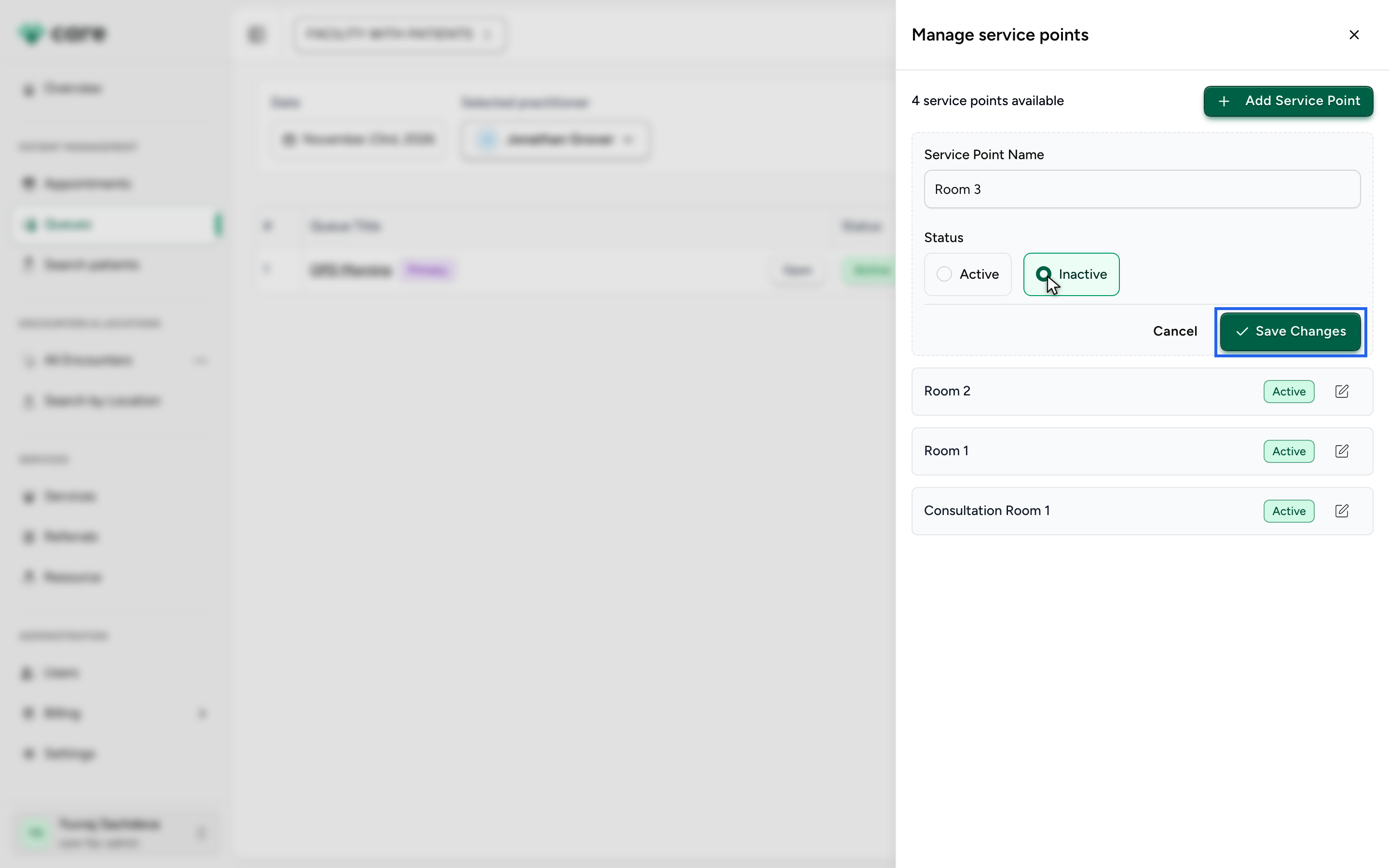
- In the Service Points panel, select the gear button. It shows only when the resource has at least one service point.
- The Manage service points sheet opens. It shows how many service points are available.
- Next to the service point, select the pencil button.
- Change Service Point Name or Status.
- Select Save Changes.
Save Changes stays disabled until you change the name or the status. It also stays disabled while the name is empty.
To add another service point from this sheet, select Add Service Point.
Note: The queue board has its own Manage service points, in its settings menu. It does not add or change service points.
On the queue board, Manage service points opens Assigned service points, with a checkbox for each active service point. You select the service points that this browser shows on the queue boards of the resource.
Care keeps that choice only in your browser. It applies to every queue board of the resource in that browser. Until you make a choice, the board shows all active service points.
Expected Outcome
- After you add a service point, Care shows the message "Service point created successfully".
- After you change a service point, Care shows the message "Service point updated successfully".
- The Service Points panel lists each service point of the resource with its name and status.
- Every queue board of the resource offers the service point while it is Active.
- On the queue board, each chosen service point has its own section, where staff serve tokens. See Serve patients from a token queue.
Related
Concepts:
Flows: