Create a token category
Overview
This flow describes how to create a token category for a facility in Care. A token category groups the tokens issued against the schedules of one resource type, and its shorthand comes before their token numbers.
Pre-requisites
- You sign in to Care with a staff account.
- You are a member of the facility.
- You know which resource type the category is for: practitioner, location or healthcare service.
- You have the permissions listed below.
Permissions
| Permission | Access |
|---|---|
| Can Create on Token Category | Lets you create a token category. You must hold it in the Administration organization, which every facility has. If you hold it only in a department or team, Care refuses to create the category with "Access Denied to Token Category". By default, the Admin, Staff and Facility Admin roles hold it. The Administrator role does not hold it. |
| Can list token category on Facility | Lets you see Token Category in the settings and open the list of categories. Hold it in the Administration organization or in a department or team of the facility. By default, the Admin, Staff, Facility Admin, Doctor, Nurse and Administrator roles hold it. |
Steps
1. Open the token categories
In the facility sidebar, select Settings.
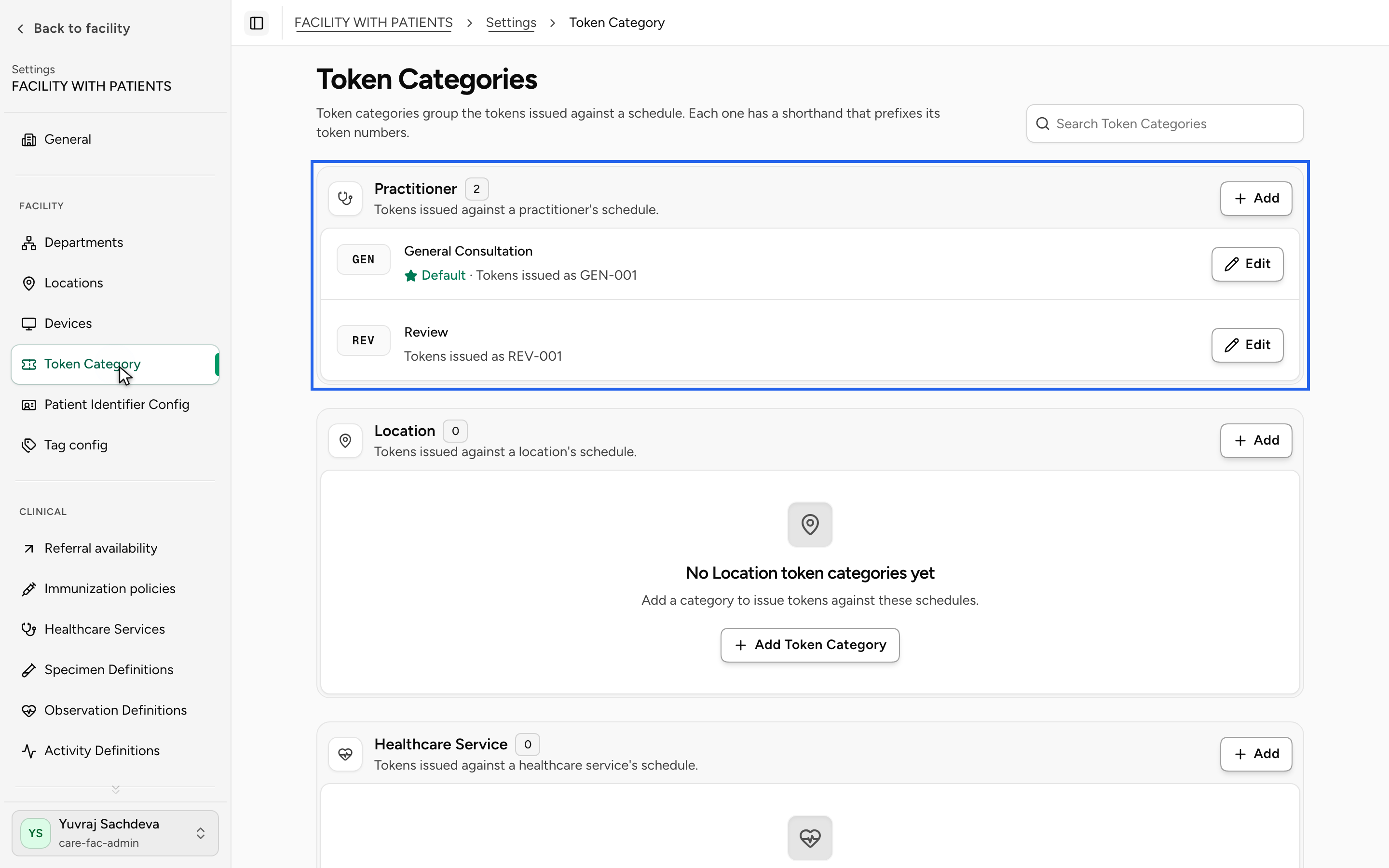
In the settings sidebar, under Facility, select Token Category.
Care opens the Token Categories page.
The page has a section for each resource type: Practitioner, Location and Healthcare Service.
2. Add a category to a resource type
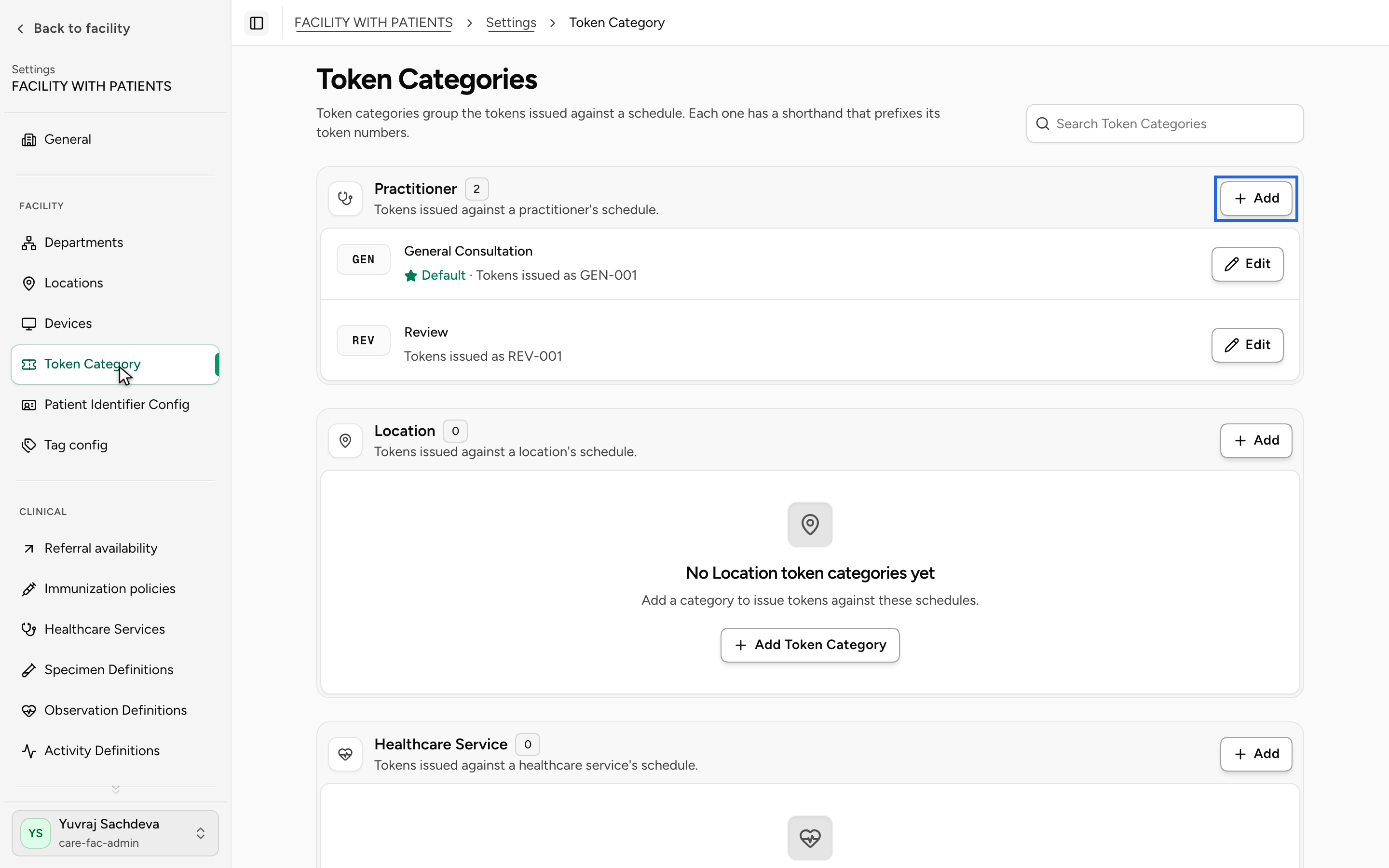
Find the section for the resource type of the category.
You cannot change the resource type after you create the category. Make sure that you use the correct section.
In that section, select Add.
If the section has no categories yet, you can also select Add Token Category.
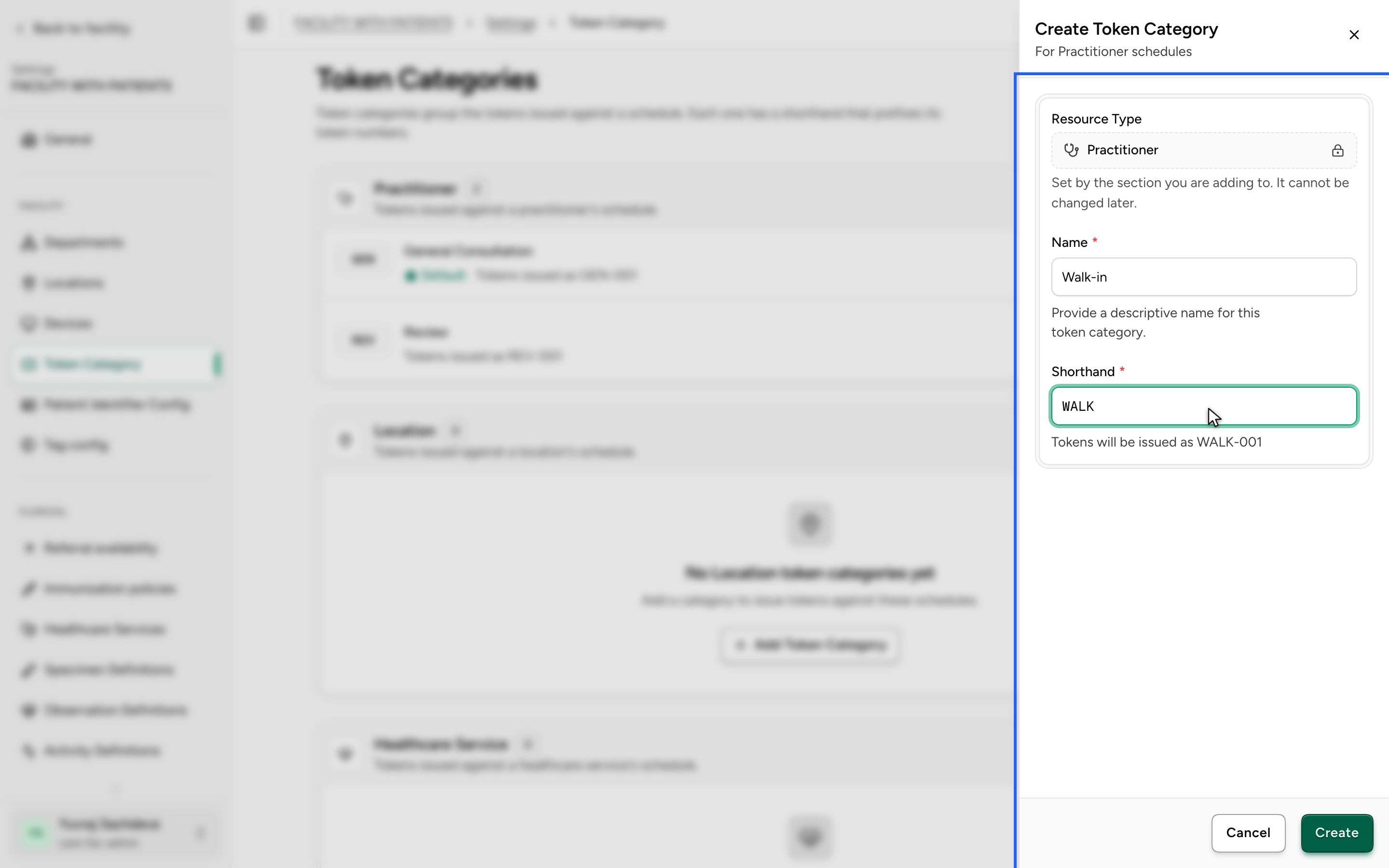
Care opens the Create Token Category form for that resource type.
3. Complete the fields
| Components | What it captures |
|---|---|
| Resource Type | The resource type of the section. You cannot change it here or later. |
| Name | A descriptive name for the category. This field is required. |
| Shorthand | A short identifier for the category, at most 5 characters. This field is required. |
As you type the shorthand, the form shows a preview of the token numbers.
Each token number of the category is the shorthand, a hyphen and the number padded to three digits, for example GEN-007.
If you leave Name or Shorthand empty, Care shows "This field is required".
4. Create the category
Select Create.
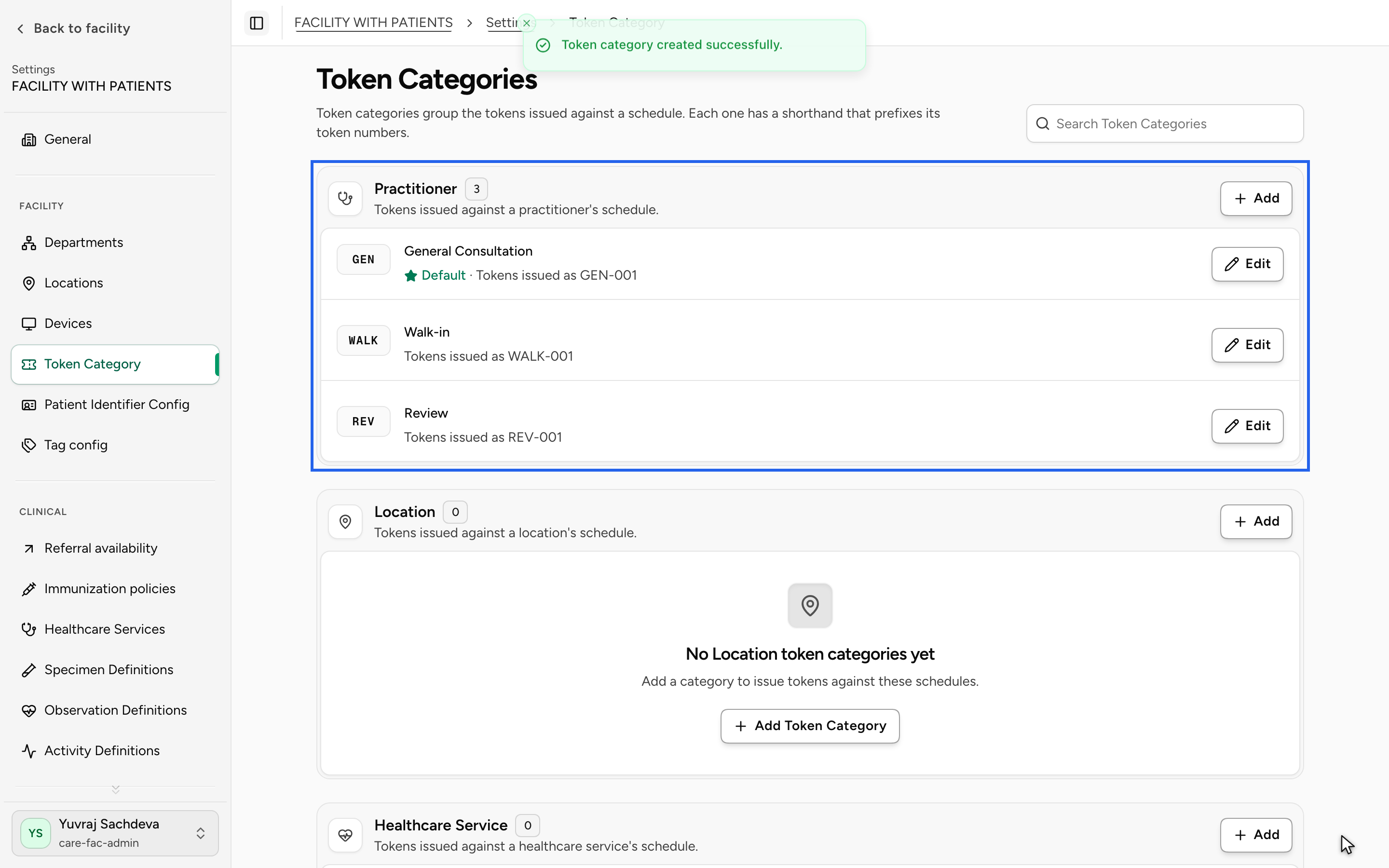
Care shows "Token category created successfully."
Expected Outcome
- The Token Categories page lists the category in the section of its resource type.
- The category shows its shorthand, its name and a sample token number, for example "Tokens issued as GEN-001".
- The new category is not the default for its resource type. To make it the default, see Edit a token category or make it the default.
- Staff can select the category only for new tokens of its resource type.
- You cannot delete a token category. You can change its name and shorthand later.
Related
Concepts:
Flows: