Create a token without an appointment
note
This option appears only if your Care deployment has turned on token generation from the patient's page.
Overview
This flow describes how to give a patient a token for today from the patient's page, without an appointment. The token puts the patient in a queue for a practitioner, a location or a healthcare service.
Pre-requisites
- You are a member of the facility.
- The patient is registered in Care.
- A token category exists for the resource type that you choose: practitioner, location or healthcare service. See Create a token category.
- If the token is for a practitioner, the practitioner has a schedule, queue or service point in the facility.
- You have the permissions listed below.
Permissions
| Permission | Access |
|---|---|
| Can Create on Token | Shows Generate Token on the patient's page, and lets you create the token. For the button, hold it in the Administration organization, which every facility has, or in a department or team of the facility. For the token, hold it for the resource that you choose, as the list below shows. Otherwise, Care shows "You do not have permission to create token queue". By default, the Admin, Staff, Facility Admin, Doctor, Nurse and Administrator roles hold it. |
| Can list token category on Facility | Lets you see the token categories in the Create Token form. Without it, you cannot select a category. Hold it in the Administration organization, or in a department or team of the facility. By default, the Admin, Staff, Facility Admin, Doctor, Nurse and Administrator roles hold it. |
| Can View Facility Organizations | If you choose a practitioner, this permission lets you see all departments in the practitioner list. Without it, you can choose only from your own departments. Hold it in any organization of the facility. By default, the Facility Admin, Admin, Staff, Doctor, Administrator, Nurse and Volunteer roles hold it. |
| Can List Facility Locations | If you choose a location, the list shows only locations linked to an organization where you hold this permission. By default, the Admin, Doctor, Facility Admin, Administrator, Nurse, Staff and Pharmacist roles hold it. |
| Can Read Healthcare Service | If you choose a healthcare service, this permission lets you see the list of healthcare services. Hold it in any organization of the facility. By default, the Facility Admin, Administrator, Admin, Staff, Doctor, Nurse, Volunteer and Pharmacist roles hold it. |
| Can list encounters | Shows Search patients in the facility sidebar. You need this permission, "Can Create encounter" or "Can update bookings on Object". Hold it in the Administration organization, or in a department or team of the facility. By default, the Admin, Doctor, Nurse and Facility Admin roles hold it. |
| Can Create encounter | Shows Search patients in the facility sidebar, like "Can list encounters". Hold it in the Administration organization, or in a department or team of the facility. By default, the Admin, Doctor, Nurse and Facility Admin roles hold it. |
| Can update bookings on Object | Shows Search patients in the facility sidebar, like "Can list encounters". Hold it in the Administration organization, or in a department or team of the facility. By default, the Admin, Staff, Facility Admin, Doctor and Nurse roles hold it. |
| Can Read Patient Identifier Config | Lets you search for the patient by an identifier type that belongs to the facility. Hold it in any organization of the facility. By default, the Facility Admin, Administrator, Admin, Staff, Doctor, Nurse, Volunteer and Pharmacist roles hold it. |
For "Can Create on Token", the facility organization that counts for the token depends on the resource that you choose:
- Practitioner: the Administration organization, an organization of the facility that the practitioner belongs to, or an organization above it.
- Location: an organization that the location is linked to or an organization above it, an organization of its parent location, or the Administration organization.
- Healthcare service that a department or team manages: that department or team, or an organization above it. A role in the Administration organization alone does not count.
- Healthcare service that no organization manages: the Administration organization.
Steps
1. Open the patient's page
- Search for the patient. See Search for a patient.
- Open the patient's page in the facility.
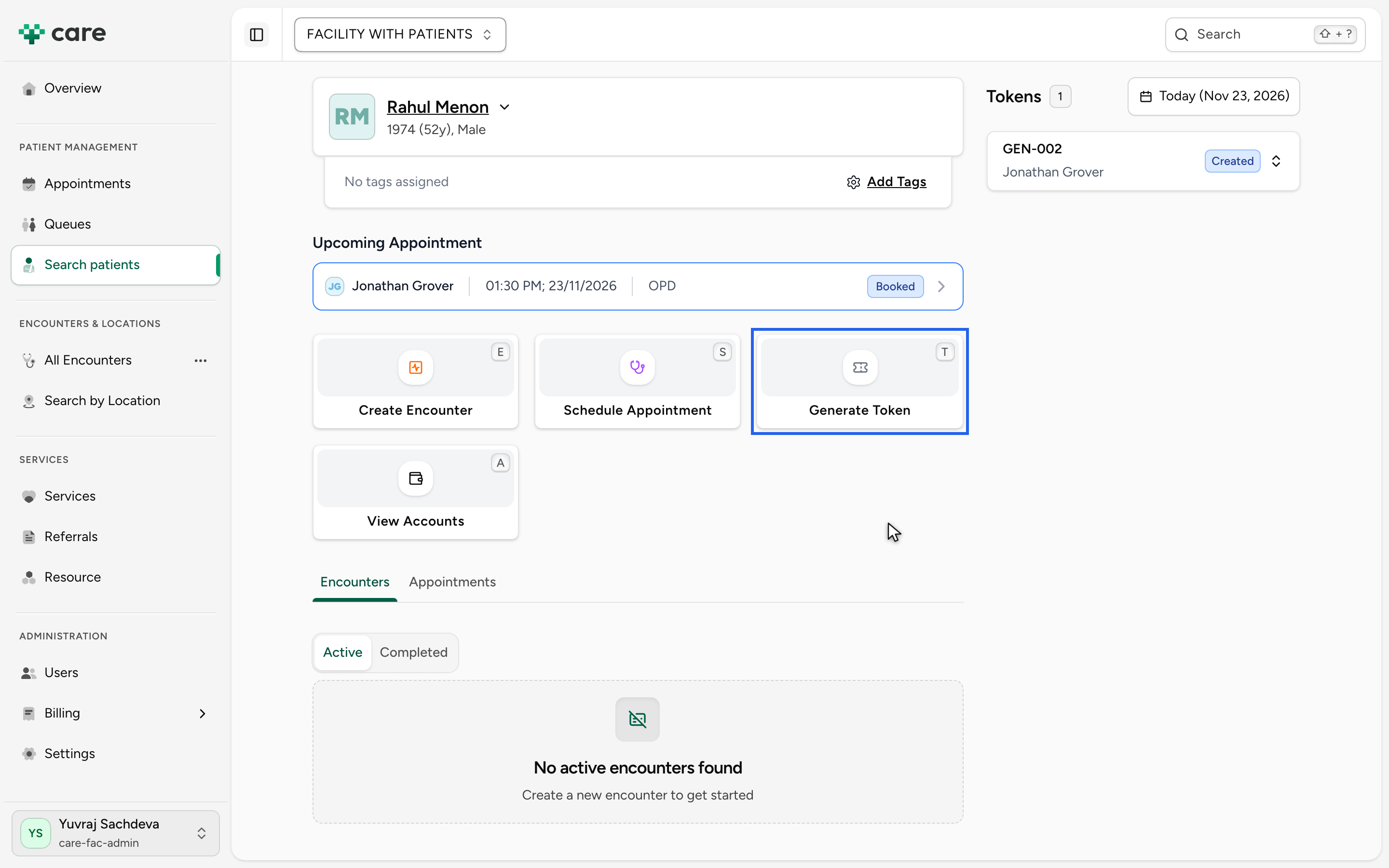
2. Select Generate Token
- On the patient's page, select Generate Token.
- Care opens the Create Token form for the patient.
- If Generate Token is not there, the deployment has it turned off, or you lack "Can Create on Token".
3. Select the resource type
- Under Select resource type, select Practitioner, Location or Healthcare Service.
- Practitioner is selected when the form opens.
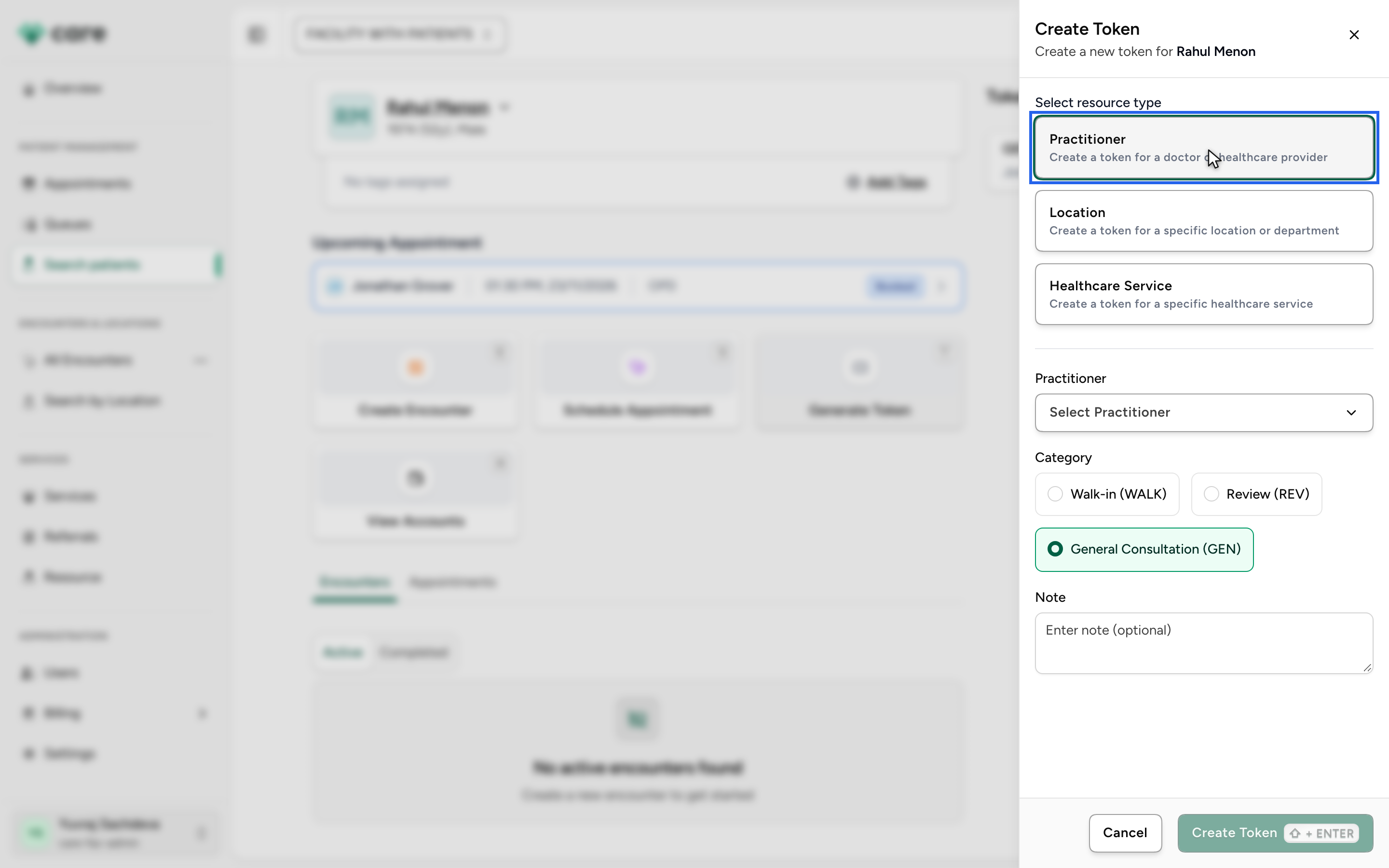
4. Select the resource
- In the field that has the name of the resource type, select the resource.
- For a practitioner, the list starts with your own departments. To see all departments, select All Dept.
- For a location, search the locations of the facility.
- For a healthcare service, select from the healthcare services that are used for scheduling.
5. Check the category
- The Category field lists the token categories of the resource type. Each category shows its name and its shorthand in brackets.
- Care selects the default category of the resource type. If there is no default, Care selects the first category.
- To use a different category, select it from the list.
- If the resource type has no category, the field shows "No categories found for this resource type". Create a category first. See Create a token category.
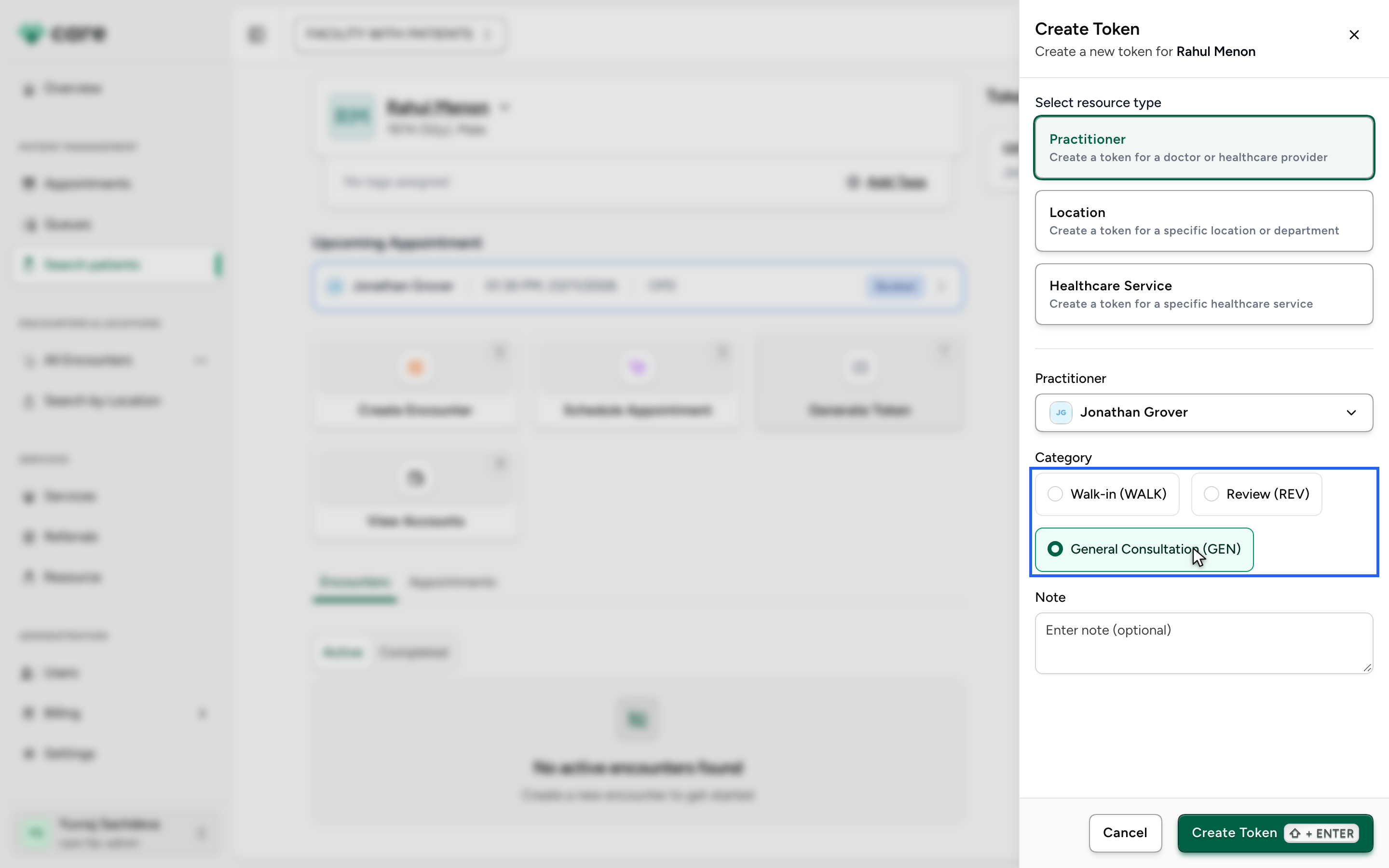
6. Add a note
- Optionally, enter a Note.
7. Create the token
- Select Create Token. You can also press Shift+Enter.
- The button stays disabled until you select a resource and a category.
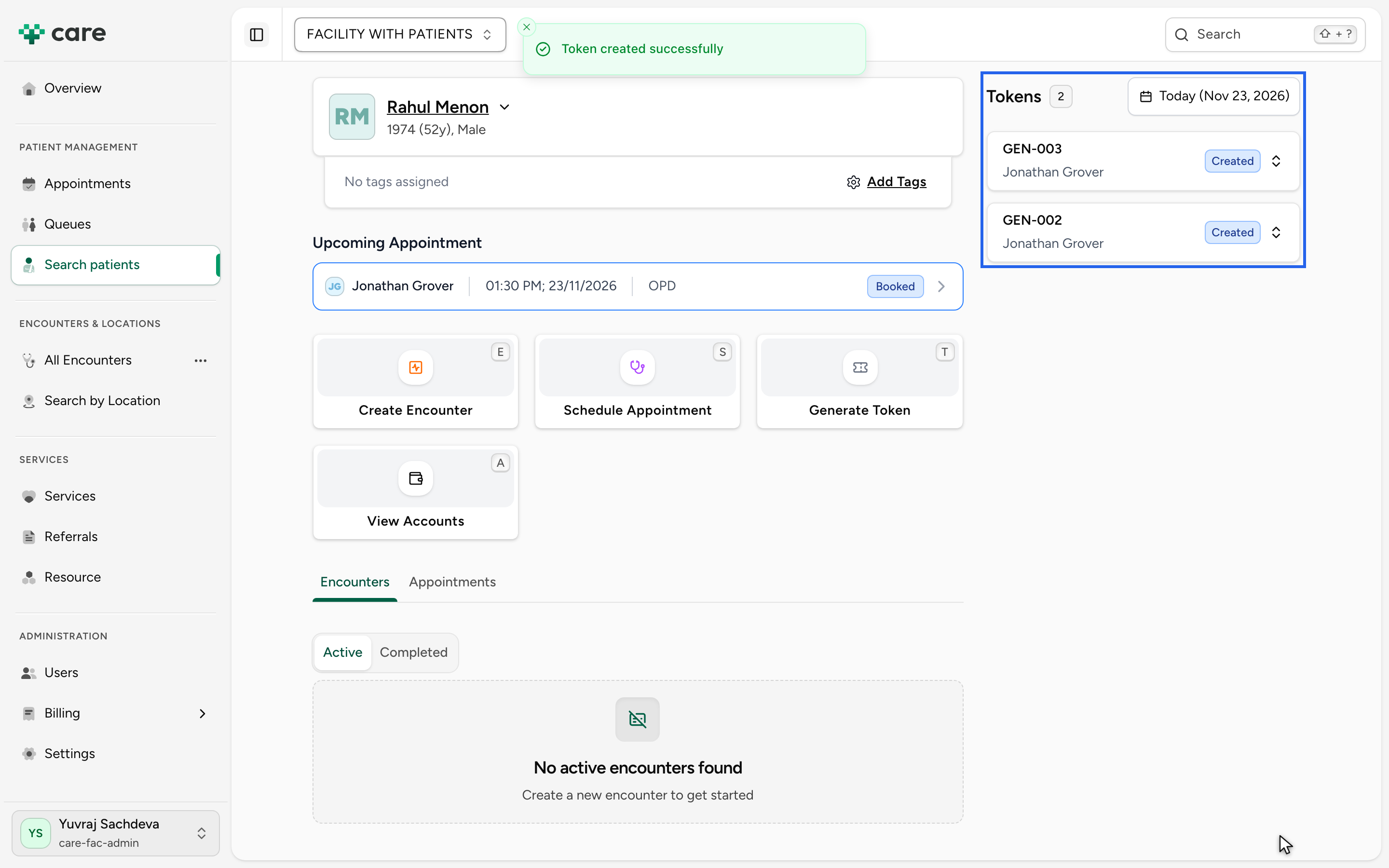
- Care shows "Token created successfully" and opens the patient's page again.
Expected Outcome
- The patient has a token for today, in the category that you selected.
- Care puts the token in the primary queue of the resource for today.
- If the resource has no primary queue for today, Care creates one. On the queue list, this queue has the title Primary Queue.
- Care counts token numbers separately for each category in the queue. The number starts with the shorthand of the category, for example GEN-007.
- The token shows in the patient's token list for today. That list needs "Can list token on Object". See View and print a patient's tokens.
Related
Concepts:
Flows: